

How does Requiply count the days it charges?
Quick answer
Billing periods decide how many days a per-day line is charged for. They do not change prices: an item at $95 per day still costs $95 for each charged day. The page is at /settings/pricing/billing-periods.
1. 24-hour periods and grace time
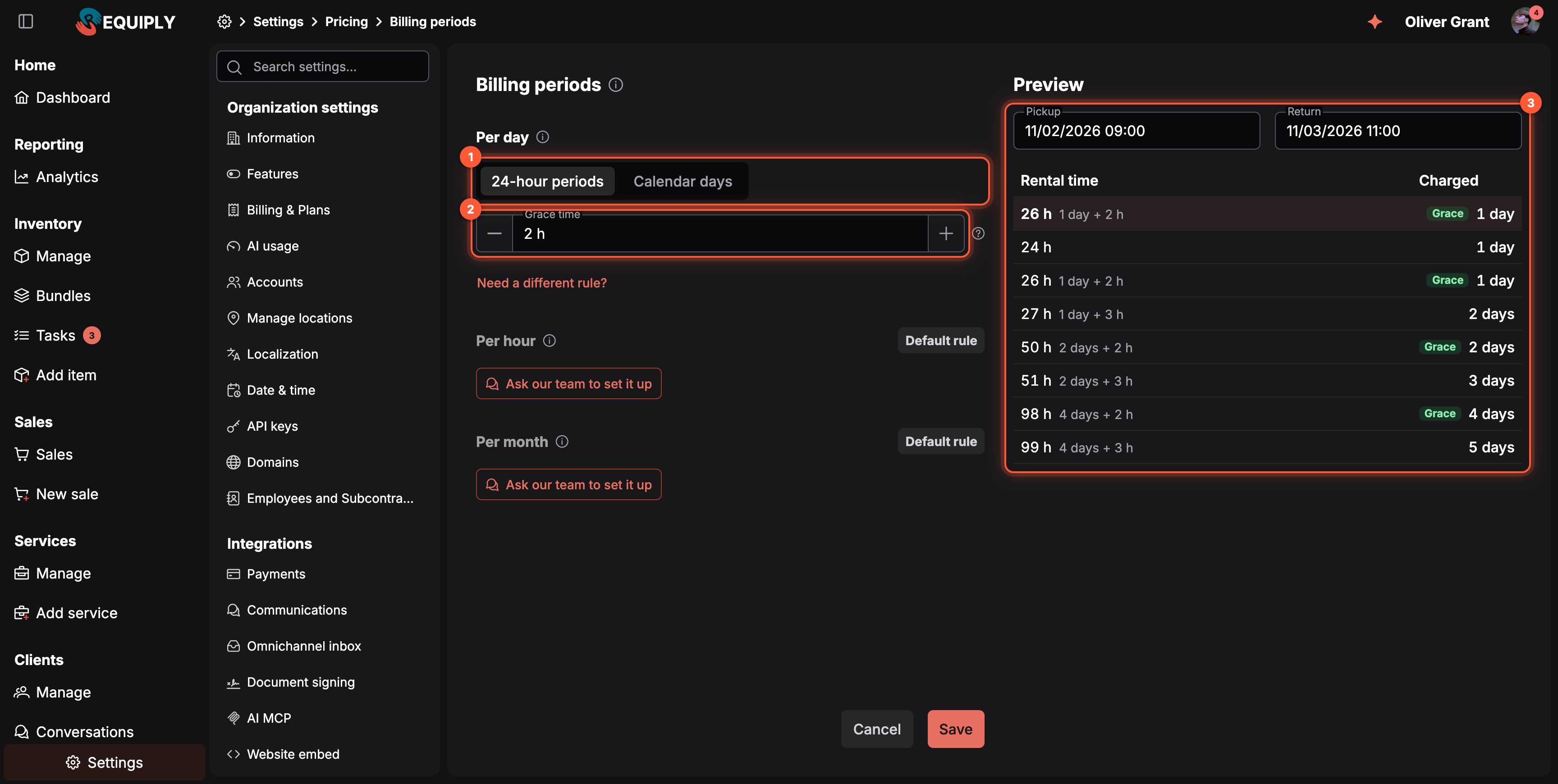
Per day on 24-hour periods.
- The Per day switch: 24-hour periods or Calendar days. The Default rule tag shows while 24-hour periods have no grace time.
- Grace time: how many hours the last day may run over before the next day is charged, from 0 to 12.
- Preview: pick a Pickup and a Return to see how that rental is charged. The first row of the table is your rental, with its Rental time (for example 26 h, 1 day + 2 h) and the days Charged. The rows below are example lengths around your grace time, and a green Grace tag marks the ones the grace time charges a day less.
Each started 24-hour period is a full day: 24 hours are 1 day, 25 hours are 2 days. Only whole hours count, so 24 h 59 min is still 1 day.
Grace time lets the last day run over before the next day is charged. It counts once per booking, not once per day: with 2 h, a rental of any length may run 2 hours over in total.
| Rental time | No grace time | Grace time 2 h |
|---|---|---|
| 24 h | 1 day | 1 day |
| 26 h | 2 days | 1 day |
| 27 h | 2 days | 2 days |
| 98 h | 5 days | 4 days |
| 99 h | 5 days | 5 days |
2. Calendar days
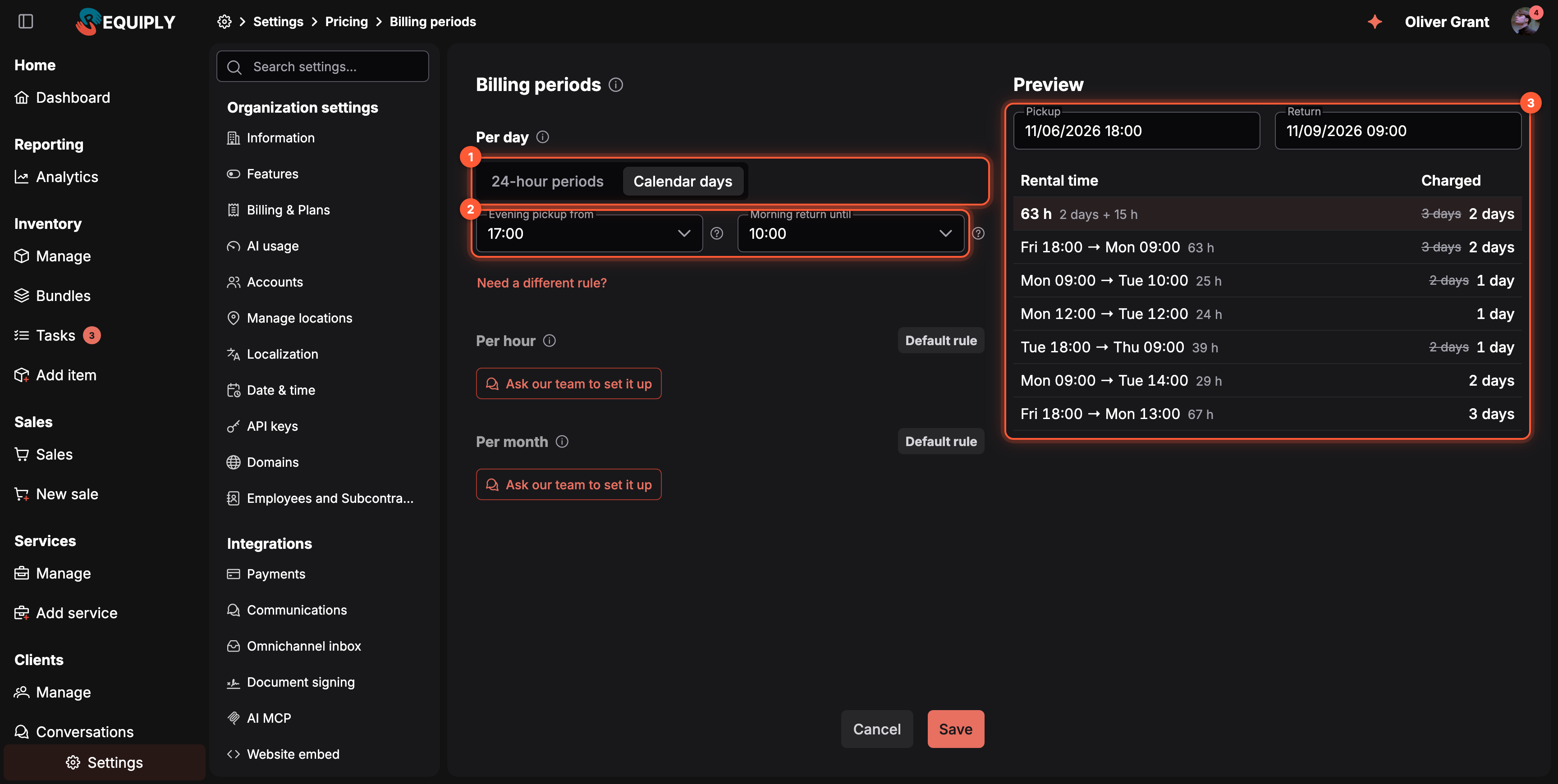
Per day on Calendar days.
- The switch on Calendar days.
- Evening pickup from and Morning return until: two times in 30-minute steps, 17:00 and 10:00 unless you change them.
- Preview: a pickup on Friday at 18:00 returned on Monday at 09:00 is charged as 2 days. When calendar days charge less than 24-hour periods, the 24-hour count is shown struck through next to the result.
Calendar days charge the calendar days between pickup and return, so the evening of the pickup and the morning of the return are free:
- A pickup at or after Evening pickup from counts from the next day.
- A return at or before Morning return until does not count its own day.
- It never charges more days than 24-hour periods would, so this mode can only lower a price. Noon to noon the next day touches two calendar days and stays 1 day.
- At least 1 day is always charged.
With the default times, the examples from the preview count like this:
| Rental | 24-hour periods | Calendar days |
|---|---|---|
| Fri 18:00 → Mon 09:00 (63 h) | 3 days | 2 days |
| Mon 09:00 → Tue 10:00 (25 h) | 2 days | 1 day |
| Mon 12:00 → Tue 12:00 (24 h) | 1 day | 1 day |
| Tue 18:00 → Thu 09:00 (39 h) | 2 days | 1 day |
| Mon 09:00 → Tue 14:00 (29 h) | 2 days | 2 days |
| Fri 18:00 → Mon 13:00 (67 h) | 3 days | 3 days |
Grace time applies to 24-hour periods only. In calendar days the two times do that job.
Days follow your organization's clock
Days are read on your organization's clock, set by the timezone in Date & time, so 17:00 means 17:00 there. A daylight-saving change during a rental neither adds nor removes an hour. The Preview pickers are read on the same clock.
Per hour and per month
These two rules are fixed and carry the Default rule tag:
| Price type | How the length is counted |
|---|---|
| Per hour | Whole hours, at least 1 hour. 2 h 40 min is charged as 2 hours. |
| Per month | Whole calendar months, at least 1 month. 1 month and 20 days is charged as 1 month. |
If you count hours or months differently, click Ask our team to set it up under the rule. For a per-day rule the page does not offer, click Need a different rule? under Per day. Both open Set up a billing rule: describe your rule under How do you count it?, check Your name and Email (filled in from your profile), and click Send request. The Requiply team replies to that email and sets the rule up for you.
Which bookings use the rules
Click Save to store your changes. Requiply confirms with Billing periods saved. Cancel puts the form back to the saved rules. Both stay disabled until you change something.
- New bookings are priced with the saved rules wherever they are created: in the web app, the mobile app, the client portal, and through the API.
- Existing bookings keep the rules they were created with. Requiply stores the rules on each booking when it is created and uses them every time the booking is priced again: date, item, and service changes, booking cost adjustments, invoices, documents, email and message templates, and the booking's page in the client portal. Saving new rules never reprices a booking that already exists.
- Bookings created before your organization saved any rules use the default rule.
Where you see the charged days
- Add booking: the booking preview shows pickup, the charged period, and return in one row. When the rule charges fewer days than plain 24-hour periods, the label under the arrow says why: 26 h · 2 h grace or 63 h · calendar days.
- Booking cost adjustment: the From the dates row of the Periods editor shows the same days and label.
- Mobile app: creating or changing a booking counts the same charged days.
- Invoices and documents: line totals use the charged days.
Who can change billing periods
Members whose permission group has Allow access to settings, which Administrators always have. Unlike pricing tiers and pricing discounts, the page is not limited to Administrators.
How billing periods work with other pricing rules
| Rule | What happens |
|---|---|
| Pricing tiers | The tier is picked by the charged days. With a 2 h grace time, a 26-hour rental uses the tier for 1 day. |
| Services | Services priced per day are counted with the same rule as items. |
| Booking cost adjustment | A one-off change on one booking, on top of the counted days. A Friday 18:00 to Monday 09:00 rental charged as 2 calendar days and adjusted by −½ is charged 1.5 days. |
| Deposits | A percentage deposit follows the rental total, so it follows the charged days too. |
| Subrentals | What you owe the supplier is still counted in plain 24-hour periods. |
Use billing periods for a rule every booking follows, and a booking cost adjustment for a deal with one client.
Common scenarios
Weekend rental from Friday evening to Monday morning
Clients pick up on Friday after work and bring the kit back on Monday morning. With 24-hour periods, Friday 18:00 to Monday 09:00 is 63 hours, which is 3 days. Switch Per day to Calendar days and keep Evening pickup from at 17:00 and Morning return until at 10:00: the rental is charged as 2 days, Saturday and Sunday, and the booking preview labels it 63 h · calendar days.
A client returns an hour late
Your rentals run from 10:00 to 10:00, and clients often come back a little late. A 3-day rental returned at 11:00 is 73 hours, which 24-hour periods charge as 4 days. Set Grace time to 2 h: up to 74 hours is still 3 days, and the preview labels the rental 73 h · 2 h grace. A client who is 3 hours late pays for the fourth day.
Overnight shoot
A crew takes lights at 20:00 and brings them back at 08:00 the next morning, 12 hours later. Both modes charge 1 day. With Calendar days, an evening pickup and a morning return would leave no day at all, but at least 1 day is always charged.
Tips and cautions
Add or edit pricing discount
Create or edit a named percentage discount and preview what it does to an item's price before saving it.
Overview
The rules every rental follows: statuses and their transitions, how bookings are created, minimum duration and buffers, deposits, subrentals, and message templates.