

Messenger
Connect your Facebook Page and the Messenger chats clients start with it arrive in Conversations. Your team replies from Requiply on the web or in the mobile app, or the AI assistant answers first, with buttons the client can tap right in Messenger.
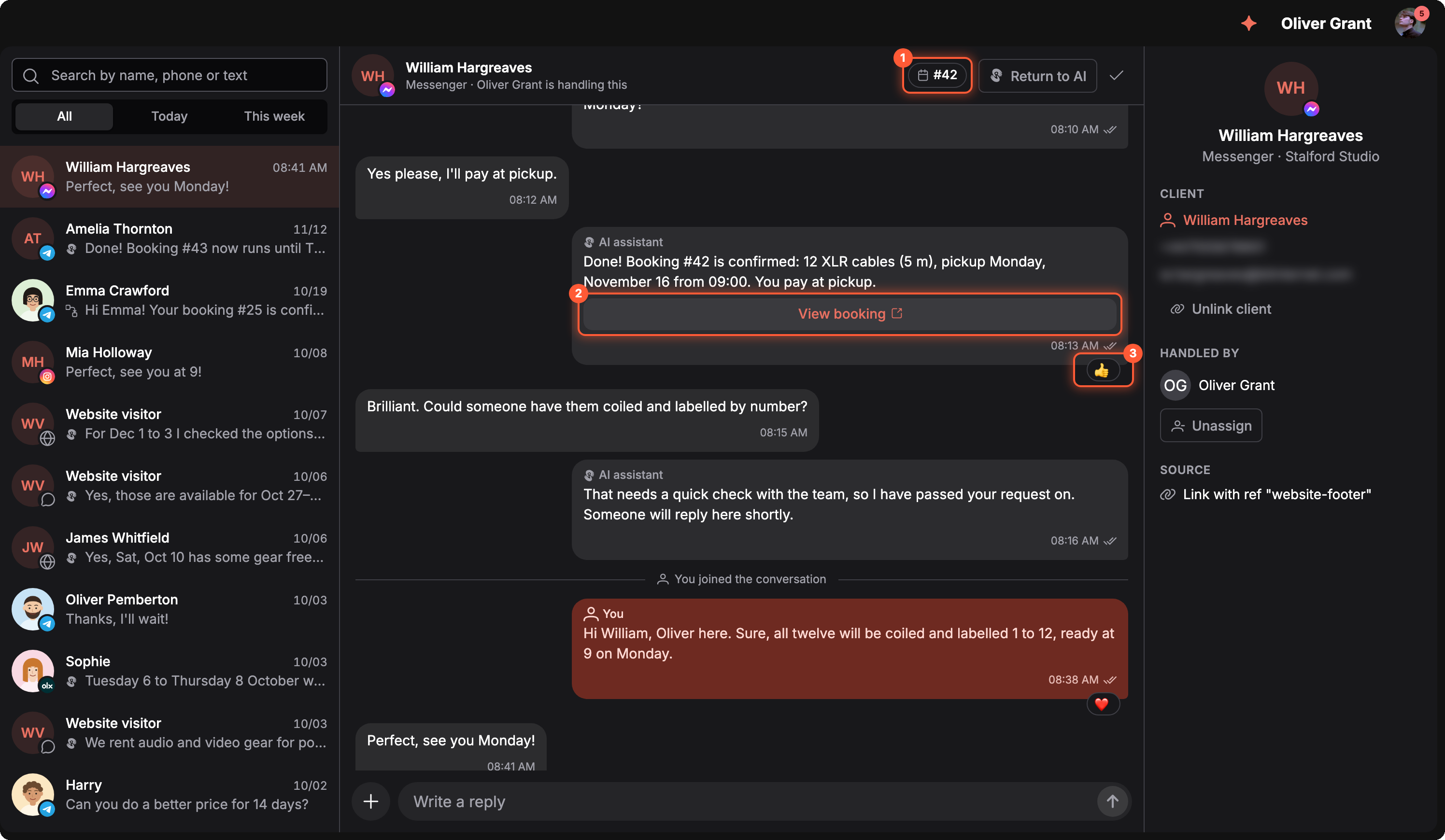
A Messenger chat in the inbox: the booking it made (1), the View booking button the client got in Messenger (2), and the client's reaction to that reply (3).
Before you start
| Requirement | Why it matters |
|---|---|
| Beta access for your Page | Email info@requiply.com with the Page you want to connect, see above. |
| The Conversations inbox switched on | Messenger conversations live in the inbox. The Messenger card on the Communications page appears only while the inbox is on, see Organization features. |
| An administrator in Requiply | Only administrators connect channels. |
| A Facebook account that manages the Page | You sign in to Facebook as a person who can manage the Page's messages, and share that Page with Requiply when Facebook asks. |
| Advanced plan, only for AI answers | Receiving and answering Messenger chats works on every plan. |
Connecting your Page
- Open Settings → Integrations → Communications, at
https://app.requiply.com/settings/integrations/communications, and click the Messenger card under Global providers. It carries the Facebook Messenger tag. - Press Sign in with Facebook. Facebook opens its own sign-in and asks which Pages Requiply may use.
- Select the Page whose chats you want in Requiply and allow access.
- Facebook sends you back to Requiply. The page shows Finishing the connection…, then Messenger account connected, and opens the Messenger dialog with the Page listed as Connected.
Several Pages shared. If you selected more than one Page in Facebook's dialog, Requiply asks Choose the Page to connect: You shared several Pages. Messages to the one you pick will arrive in Conversations. Pick one and press Connect. Pages your business portfolio manages are offered too. To connect a second Page, use Connect another Page afterwards.
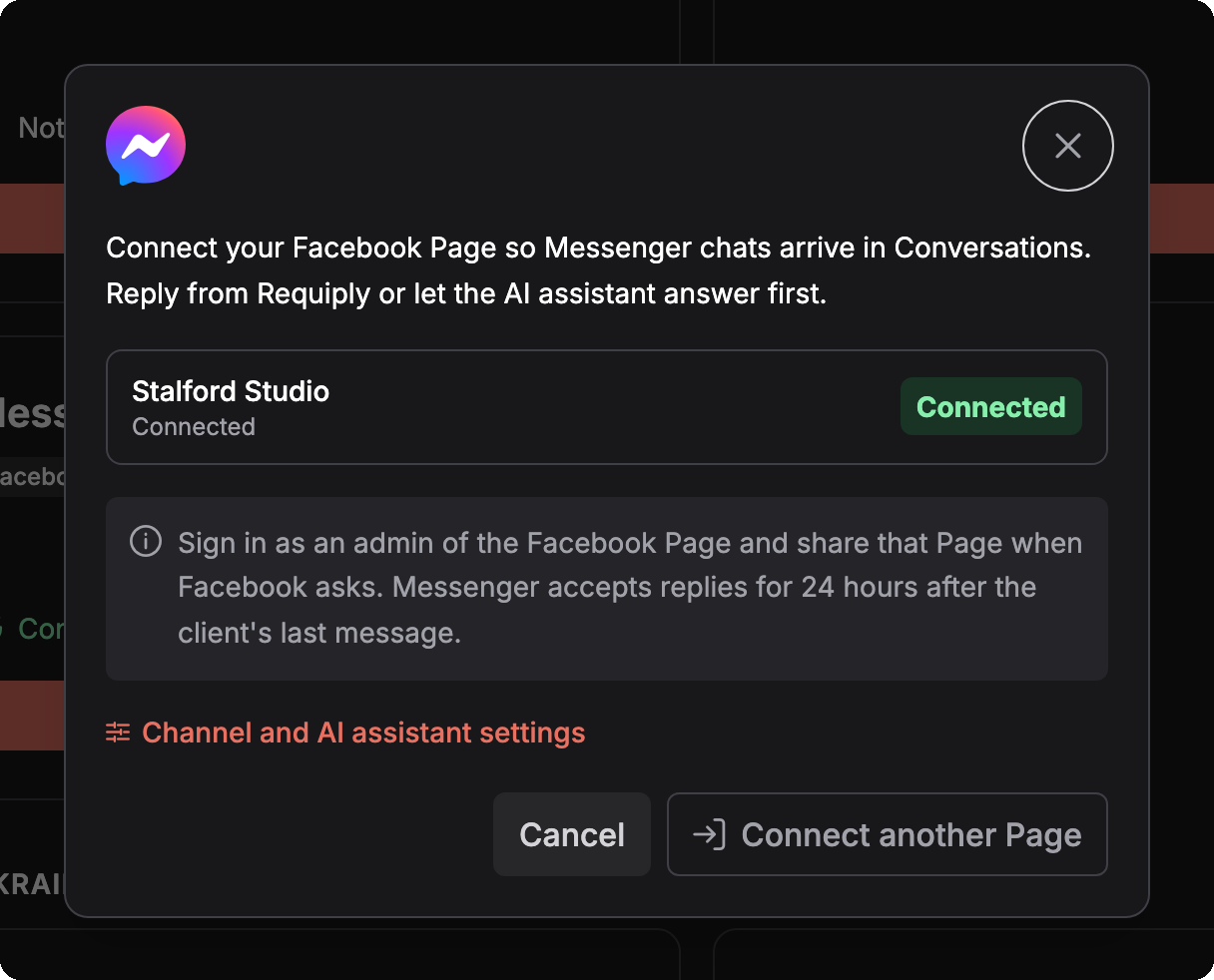
The Messenger dialog with one Page connected. Connect another Page adds a second one.
You can also press Connect on the Messenger row of the Channels tab in Omnichannel inbox settings. It starts the same sign-in. Until a Page is connected the row reads Sign in with Facebook and choose your Page under Communications.
Once connected, the Page appears on the Channels tab, where you can pause it, disconnect it, choose when the AI assistant answers on Messenger, or change the Page.
If connecting fails
| Message | What to do |
|---|---|
| No Facebook Page was shared during sign-in. Sign in again and select the Page you manage. | In Facebook's dialog no Page was ticked, or your account does not manage one. Start again and select the Page. If Facebook skips the Page step because you signed in before, choose Edit settings (or Edit access) in its dialog to pick the Pages again. |
| This account is already connected to another organization in Requiply. Disconnect it there first. | One Page can belong to one Requiply organization only. |
| Sign-in was cancelled. Nothing was connected. | You closed or declined Facebook's sign-in. Start again. |
| The sign-in link expired or was opened by another user. Start connecting again. | Start again from the Messenger card, in the same browser. |
| Beta on request. Email our team at info@requiply.com… | Your Page is not on the beta list yet. |
Changing the Page
To move the channel to another Page, open the Actions dropdown of the Messenger row on the Channels tab and choose Change Page (the same action is called Change account for Instagram and OLX). Sign in with Facebook and pick the new Page.
- The new Page takes over the channel's AI working hours setting.
- The old Page is disconnected. Its conversations stay in the inbox as history.
- New messages arrive from the new Page only.
What comes into the inbox
- Text messages from clients, in and out.
- Photos, videos, audio and files. Requiply keeps its own copies, because Messenger's links to them expire.
- Taps on buttons. When a client taps a button, such as Get Started on your Page, the inbox shows the button's label as their message.
- Reactions. A reaction the client puts on a message shows under it, see Reactions.
- Client edits. When a client edits a message, the inbox shows the new text with an edited label. Messenger does not report unsent messages, so those stay in the inbox.
Ads and m.me links
When a client starts the chat from one of your click-to-Messenger ads, the conversation's right panel gets a Source section reading Messenger ad: {ad title}, and the AI assistant is told about the ad. When a client opens the chat from an m.me link with a ref parameter, Source reads Link with ref "{ref}". Use different refs on your website, in your posts and in print to see where clients come from.
Contacts
Requiply shows each client's Messenger name and profile picture in the inbox and refreshes them about once a week. Facebook does not share phone numbers or email addresses, so link the conversation to a client yourself or let the AI assistant ask for contact details, see Linking conversations to clients.
There is one conversation per person per connected Page. When they write again later, the same conversation reopens.
Replying
- From Requiply. Type in the composer. Messenger shows plain text only, so formatting is removed. A reply longer than 2,000 characters goes out as several messages. Photos, videos, audio and files of any kind go out through the + button.
- Replying to a message. Reply to a client's message with a quote and it arrives in Messenger as a reply to that message. When the client replies to one of your messages, the inbox shows the quote above it. See Replying to a message.
- From Facebook. Replies typed in Meta Business Suite or the Messenger app also appear in the thread, labelled Sent from Messenger. Because a person stepped in, a conversation the AI assistant was answering moves to your team.
- Buttons from the AI assistant. Under a booking or request it made, the assistant adds up to three buttons, such as Pay online and View booking, and offers answers to tap, such as Yes, pay online, when it asks the client to confirm. See Buttons and quick replies.
- No editing or deleting. Messenger does not let other apps change or unsend a message a Page sent, so the Edit and Delete buttons do not appear in Messenger conversations.
- Reactions. Your team can put a ❤️ on a client's message. That is the only reaction Messenger accepts from a Page.
The 24-hour reply window
Messenger accepts replies for 24 hours after the client's last message:
- In the last 6 hours, the composer shows The channel accepts replies until {time}.
- After 24 hours, team members can still reply for up to 7 days after the client's last message. The AI assistant cannot.
- After 7 days, the conversation can be read but not answered until the client writes again.
If Messenger refuses a reply, it is marked Not delivered with the reason on hover. For example, The contact blocked this channel means the client blocked your Page.
Read status and typing
- Opening a conversation in Requiply marks the client's messages as seen in Messenger.
- Seen by the client. When the client has read a reply from your team or the AI assistant, the message gets the read mark in the inbox.
- Typing. While the AI assistant writes an answer, the client sees the typing indicator in Messenger.
Keeping the connection working
The Facebook sign-in does not expire on its own. The channel shows Needs attention when Facebook stops accepting it, for example when someone removed Requiply from the Page's business integrations or lost the right to manage the Page. Then:
- the dialog on the Communications page says Facebook stopped accepting the sign-in. Sign in again to keep receiving messages.,
- the Actions dropdown on the Channels tab offers Sign in again.
If the Page owner removes Requiply in Facebook and asks Meta to delete their data, Requiply deletes the connection together with its conversations and stored files.
Common scenarios
- A client writes to your Page late at night. The AI assistant quotes the rental, books it and sends View booking as a button. The client puts a 👍 on it, and the team sees the booking chip in the thread header the next morning.
- Your business manages several Pages. Select all of them in Facebook's dialog, pick the one to connect in Requiply, then add the others with Connect another Page.
- You rebranded and moved to a new Page. Use Change Page on the Channels tab. The new Page keeps the channel's AI hours, and old chats stay readable.
Tips and cautions
- Answer within 24 hours when you can. Late replies depend on the 7-day team window, and the AI assistant cannot use it.
- Check what you send before pressing Enter. Your replies cannot be edited or deleted on Messenger.
- Keep the contact question on. Facebook does not share phone numbers, so keep Ask for a phone or email before handing over on in settings.
OLX
Connect your OLX account so buyers' messages about your OLX listings arrive in the Conversations inbox: sign in with OLX, the listing card above each chat, AI answers, replies from the OLX app, files, read ticks and the limits of the OLX integration.
Comments
The notes, photos, files, and expenses your team attaches to an item, a task, a booking, or a client, plus the automatic history Requiply records alongside them.