

E-invoicing (KSeF)
The E-invoicing page connects Requiply with a national e-invoicing system. Today that is KSeF (Krajowy System e-Faktur), the system every Polish VAT taxpayer issues invoices in. Once it is connected, you issue an invoice for a booking from the booking's actions menu: Requiply builds the structured invoice from the booking, sends it to KSeF and keeps the KSeF number, the UPO receipt and a printable PDF on the booking.
You can find this page under Settings → Integrations → E-invoicing. The same page connects Fakturownia, for teams that already invoice there; with both connected, the booking's actions menu offers Issue invoice in KSeF and Issue invoice in Fakturownia.
How KSeF invoices differ from a PDF
KSeF does not accept PDFs. An invoice in KSeF is a structured XML document in the FA(3) format: the seller, the buyer, every line with its VAT rate, and the totals. KSeF checks it, gives it a KSeF number and issues an UPO (Urzędowe Poświadczenie Odbioru), the official confirmation of receipt. Only an invoice with a KSeF number counts as issued.
Requiply builds that FA(3) invoice for you from the booking: the rented items and services become invoice lines, and the VAT you charged on the booking becomes the VAT on the invoice. The PDF you download from Requiply is a visual copy for your client, printed with the KSeF number and the verification QR code.
Before you start
You need:
| What | Where it comes from |
|---|---|
| KSeF token | Generate it in the KSeF taxpayer app (Aplikacja Podatnika KSeF) with the right to issue invoices. Use a token from the environment you plan to connect (Test, Demo or Production). |
| VAT on bookings | A VAT payer's invoices need VAT on the booking. Turn VAT on under Settings → Pricing → VAT before you create the bookings you want to invoice; bookings keep the VAT they were created with. |
| Currency PLN | KSeF invoices are issued in Polish złoty, so the organization currency must be PLN. |
Connecting KSeF
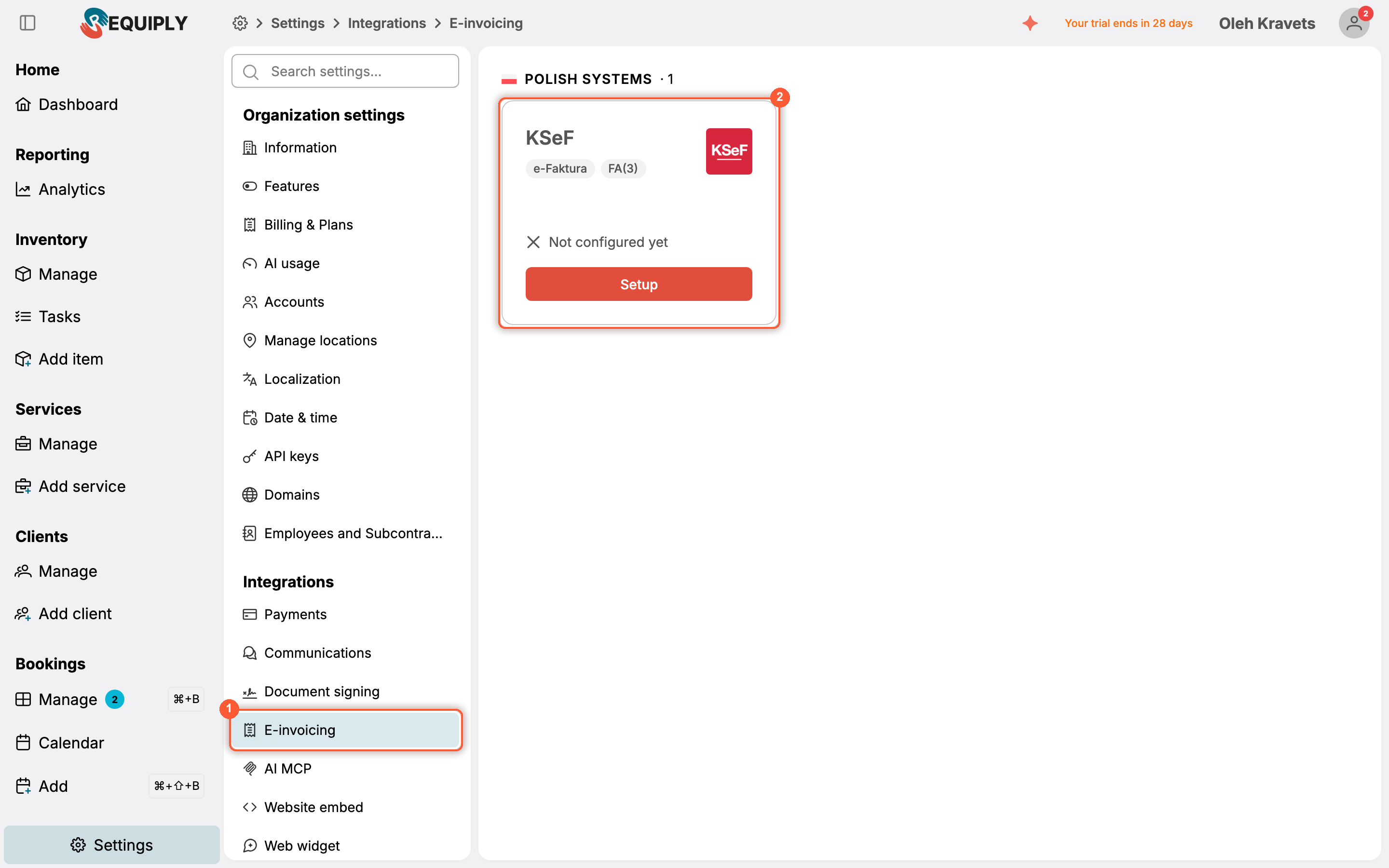
1 The E-invoicing page in the settings menu. 2 The KSeF card.
Click Setup on the KSeF card. The dialog asks for the token and the seller details that go on every invoice:
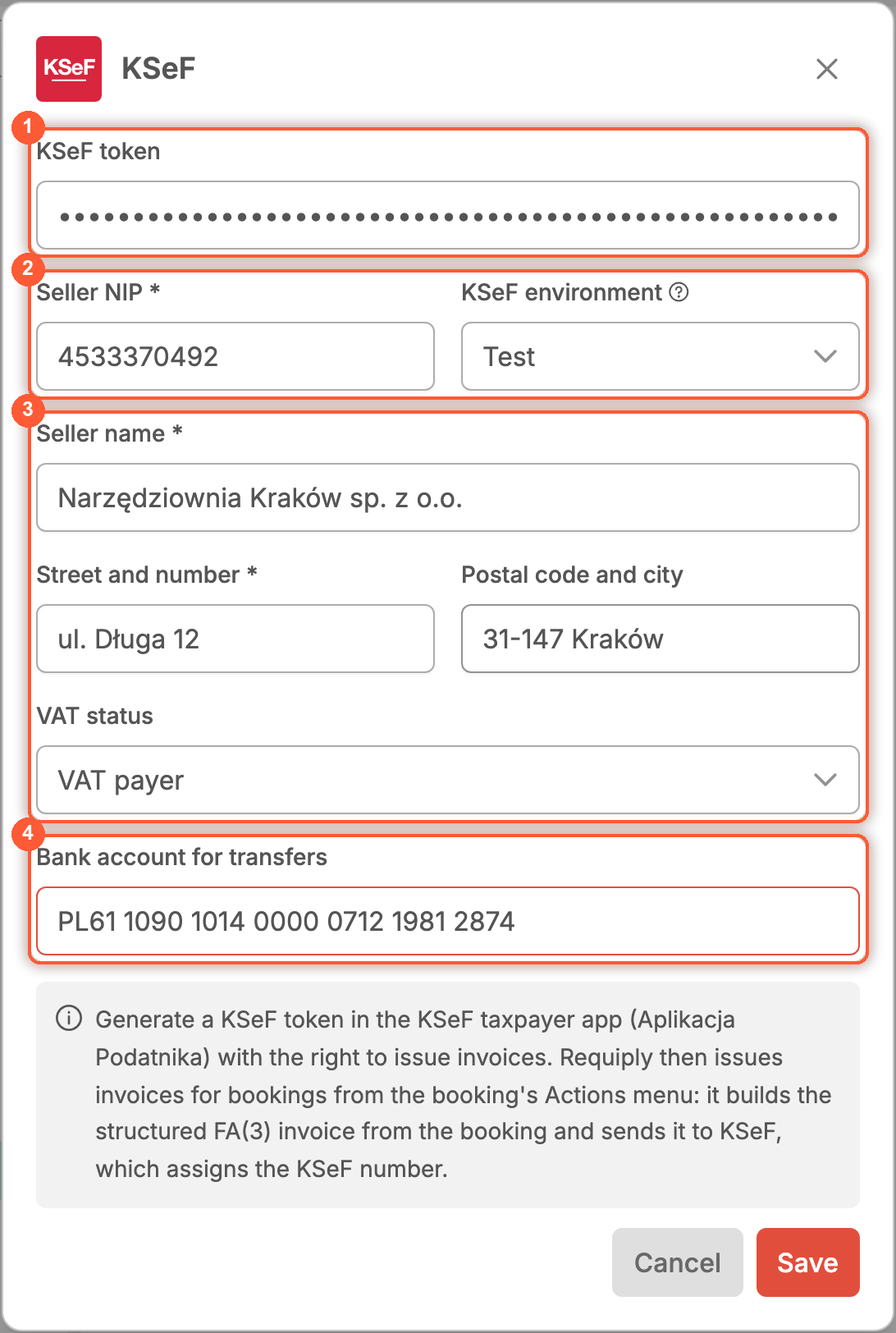
1 The token from the KSeF app. 2 The seller's NIP and the KSeF environment. 3 The seller as printed on the invoice. 4 The account clients pay to.
| Field | What it means |
|---|---|
| KSeF token | The token you generated in the KSeF app. It is checked against KSeF and stored encrypted. |
| Seller NIP | Your tax number. Requiply reads it from the token when it can; it must be a valid NIP. |
| KSeF environment | Production issues real invoices. Test and Demo are KSeF's practice environments: use them only with a token from that environment. |
| Seller name | Your company name, as it should appear on invoices. |
| Street and number, Postal code and city | The seller's address on the invoice. |
| VAT status | VAT payer or VAT-exempt. An exempt seller also gives the Legal basis of the exemption, which is printed on every invoice (by default art. 113 ust. 1 ustawy o VAT). |
| Bank account for transfers | Optional. A Polish account number, printed on invoices that are still to be paid. |
Click Save. Requiply signs in to KSeF with the token before it stores anything, so a token that does not match the NIP or the environment is refused with KSeF refused the token for this NIP and environment.
Issuing an invoice for a booking
Open the booking and click the arrow next to Export to open its actions menu. With KSeF connected, the menu has Issue invoice in KSeF, with the KSeF logo. In the mobile app the same item is in the booking's Actions menu.
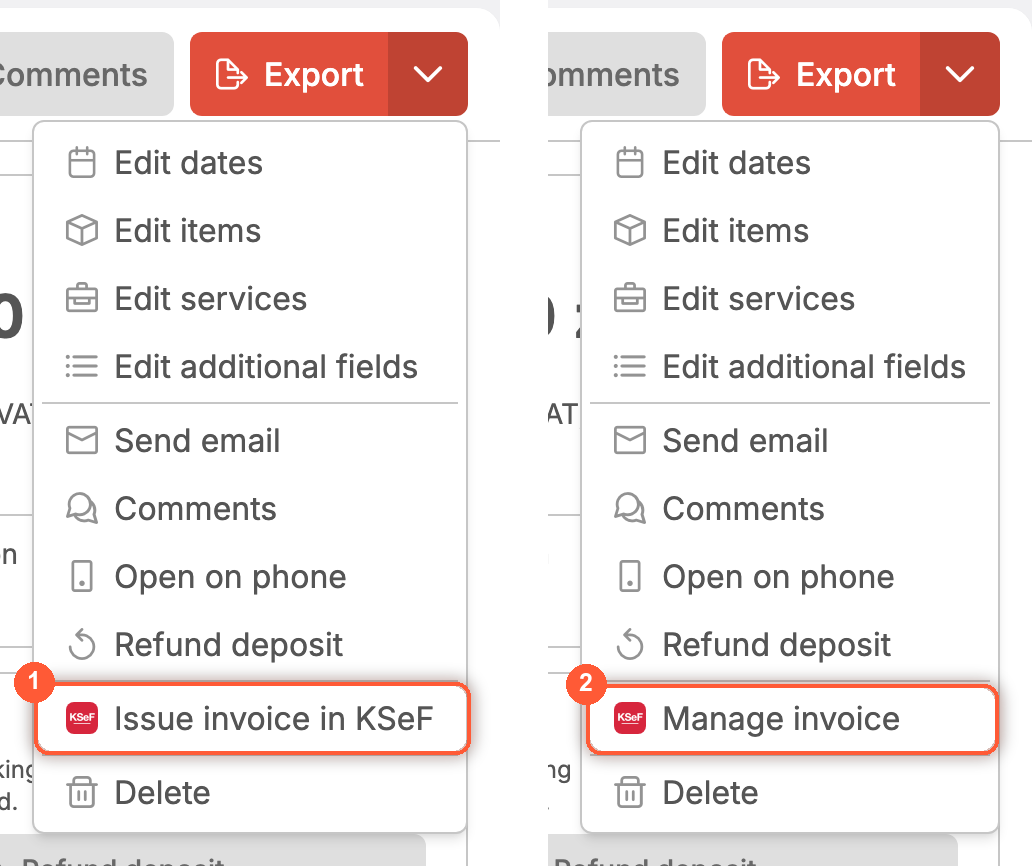
1 Before the booking has an invoice. 2 After: the same item opens the booking's invoices.
The dialog opens with the invoice already built from the booking:
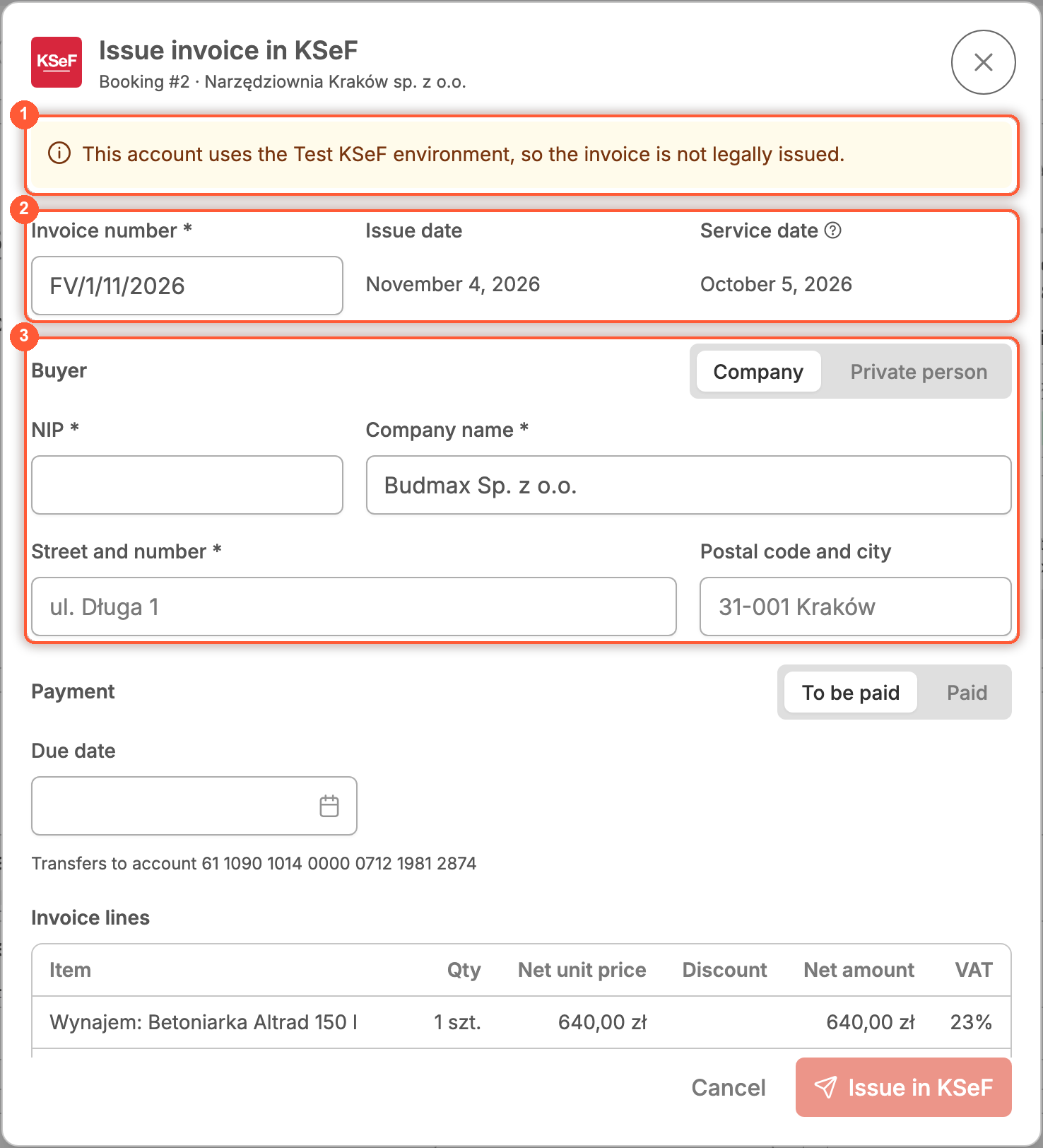
1 Shown only on Test and Demo accounts. 2 The suggested number and the invoice dates. 3 The buyer, prefilled from the booking's client.
| Part | How it is filled in |
|---|---|
| Invoice number | The next number after your last KSeF invoice, keeping its pattern. The first one is FV/1/MM/YYYY, and the counter starts again at 1 each month. Change it if your numbering differs. |
| Issue date | Today. KSeF records the day the invoice is sent as its issue date. |
| Service date | The day the booking ends. |
| Buyer | Company or Private person. A company needs its NIP, name and street address; a private person needs only a name. Requiply suggests the buyer details from the last invoice issued to this client, otherwise the client's name. |
| Payment | Paid, with the payment date, when the booking is fully paid; otherwise To be paid, with an optional Due date. Your bank account is shown under it. |
Scroll down to check the buyer, the payment and the invoice lines, then issue:
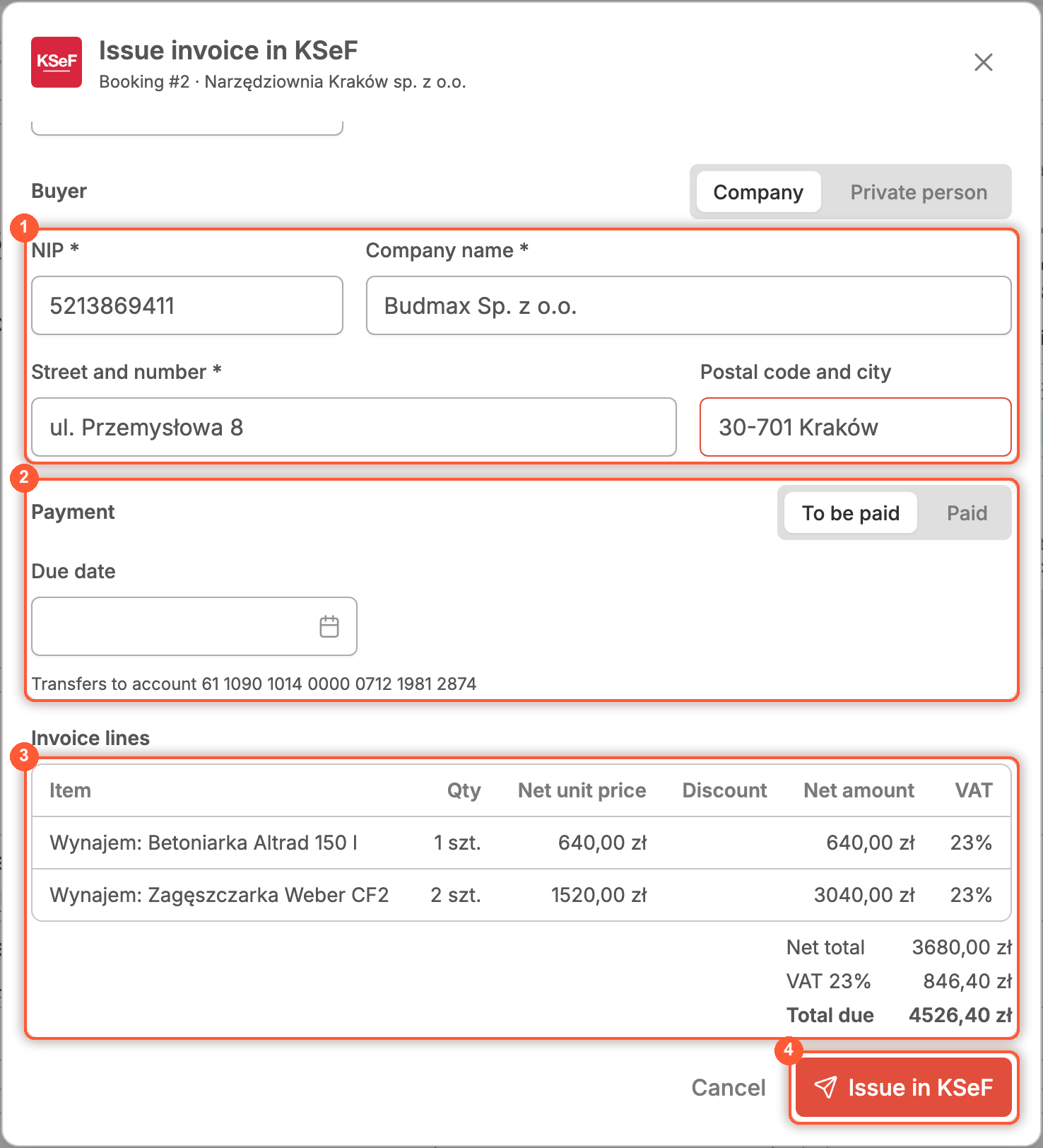
1 The company buyer. 2 Payment terms. 3 The lines and totals KSeF will receive. 4 Send it.
The invoice lines come from the booking: one line per rented item and service, at the price and discount on the booking, with the VAT rate you charged. A booking with several VAT rates gets one line per rate. You cannot edit the lines in the dialog; change the booking instead and open the dialog again.
Click Issue in KSeF. Requiply sends the invoice and waits a few seconds for KSeF's answer:
- Invoice issued in KSeF with the KSeF number: KSeF accepted it.
- Invoice sent, KSeF is processing it: KSeF has not answered yet. The status updates on its own; see Statuses.
- KSeF rejected the invoice: the reason KSeF gave is shown on the booking, and you can issue it again.
What stops an invoice
The dialog shows the problem instead of the lines when the booking cannot be invoiced in KSeF as it is:
| Message | What to do |
|---|---|
| The booking has no VAT, but the KSeF account is set up for a VAT payer | Turn on VAT before creating bookings, or change the account's VAT status if you are exempt. |
| The booking charges VAT, but the KSeF account is set up for a VAT-exempt seller | Check the account's VAT status in Edit details. |
| A …% VAT rate cannot be issued in KSeF | KSeF accepts 23%, 8%, 5% and 0%. Change the rate on the booking. |
| KSeF invoices are issued in PLN | The organization uses another currency. |
| The booking has nothing to invoice | The booking total is zero. |
| This booking already has an invoice in KSeF | Open it with Manage invoice instead. |
The Invoices section on a booking
Once a booking has an invoice, an Invoices section appears on the booking page, and the menu item becomes Manage invoice, which scrolls to it. Bookings without invoices don't show the section at all.
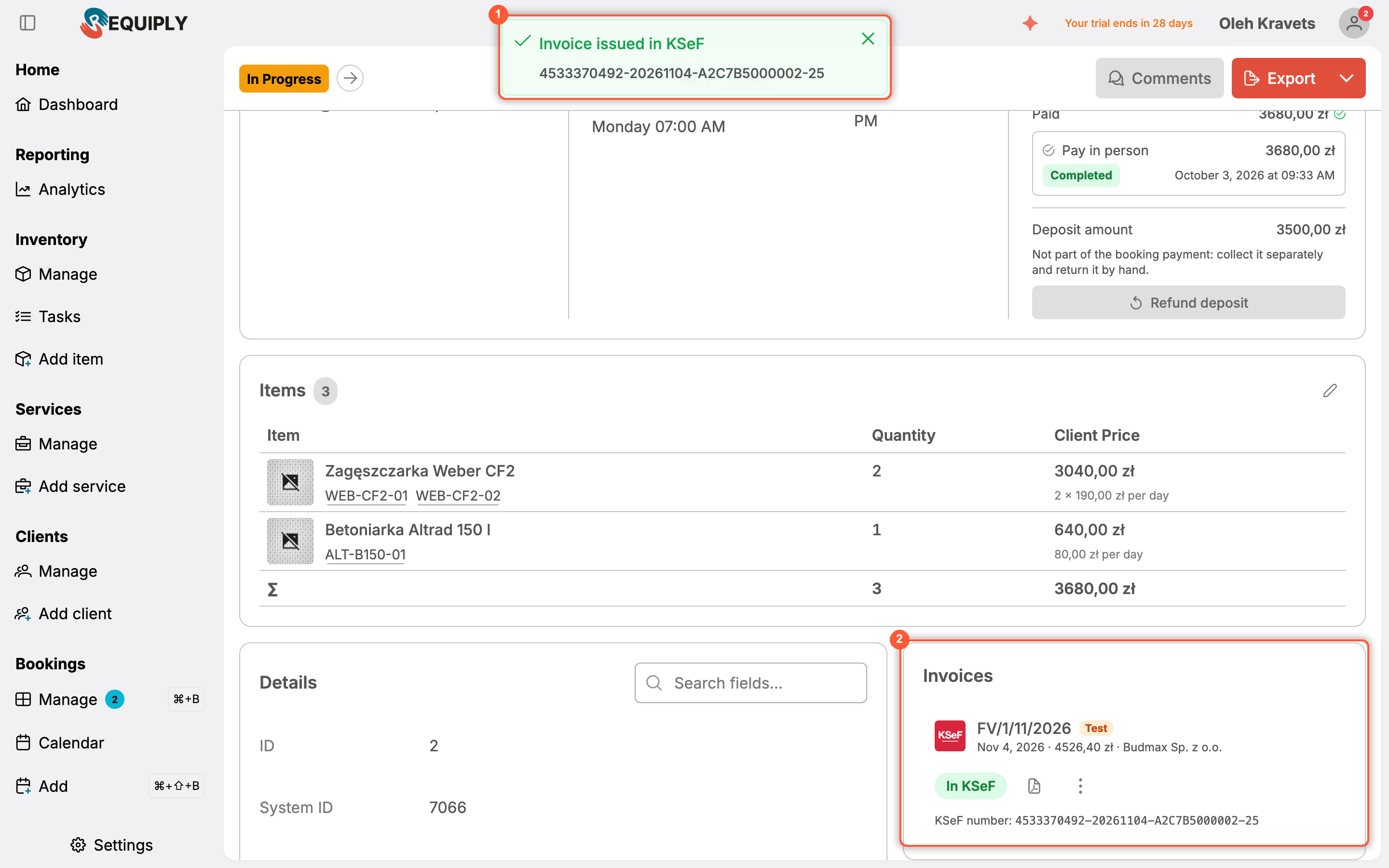
1 KSeF's answer. 2 The invoice on the booking.
Each invoice shows its number, the issue date, the gross amount, the buyer, its status and the KSeF number. Its buttons:
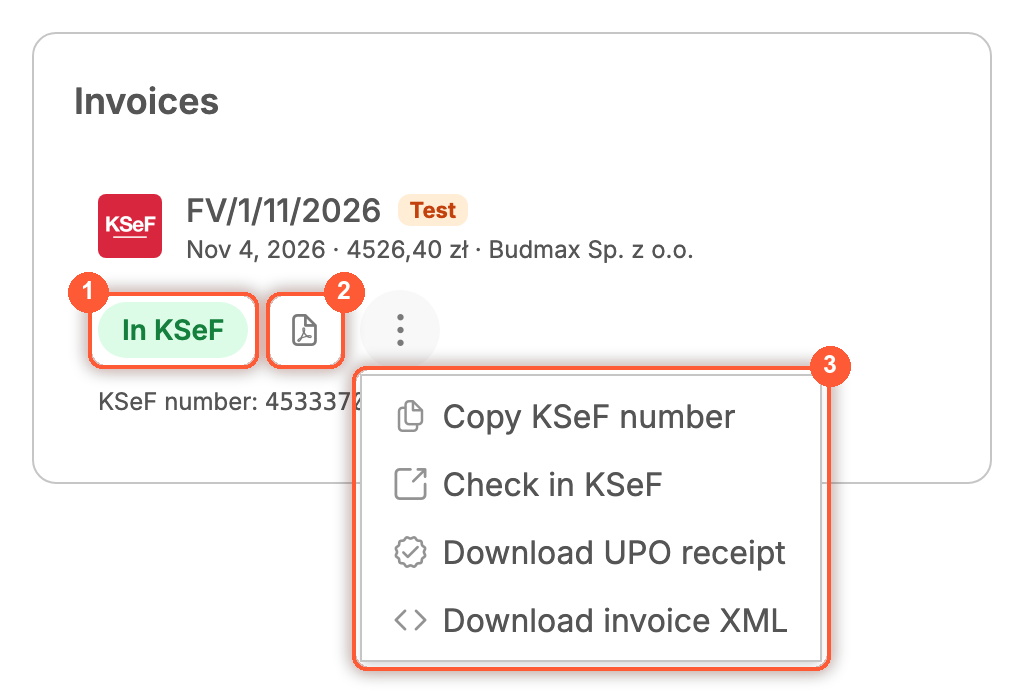
1 The status. 2 The printed PDF. 3 The KSeF number and KSeF's own files.
| Action | What it does |
|---|---|
| Download PDF | The invoice for your client, printed from what was sent to KSeF, in Polish. |
| Copy KSeF number | Copies the number KSeF assigned. |
| Check in KSeF | Opens KSeF's public verification page for this invoice (the same link as the QR code). |
| Download UPO receipt | The official confirmation of receipt, as XML. |
| Download invoice XML | The FA(3) file that was sent to KSeF. |
The PDF carries the KSeF number and the KOD I verification QR code in the corner. Anyone who scans it lands on KSeF's page for the invoice.
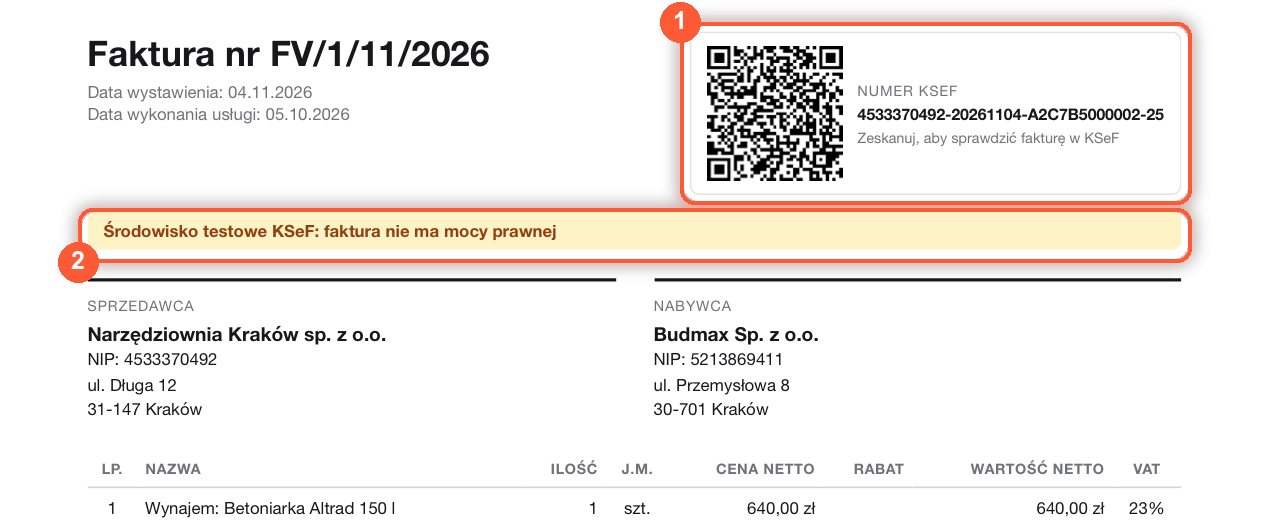
1 The KSeF number and the verification QR code. 2 Printed only for Test and Demo invoices.
Statuses
| Status | Meaning |
|---|---|
| Processing | Sent to KSeF, no answer yet. A refresh button appears on the section; it also refreshes by itself when you open the booking. |
| In KSeF | Accepted. The invoice has its KSeF number and UPO. |
| Rejected | KSeF refused the invoice. The reason is shown under it, with Issue again. |
| Error | KSeF could not process it. Issue it again. |
A booking can have only one invoice that is processing or accepted. After a rejection or an error, Issue again opens the dialog with the same booking, and the earlier attempt stays in the list.
On the phone
The Requiply app issues and manages KSeF invoices too, from the same accounts. Connecting an account is done on the web.
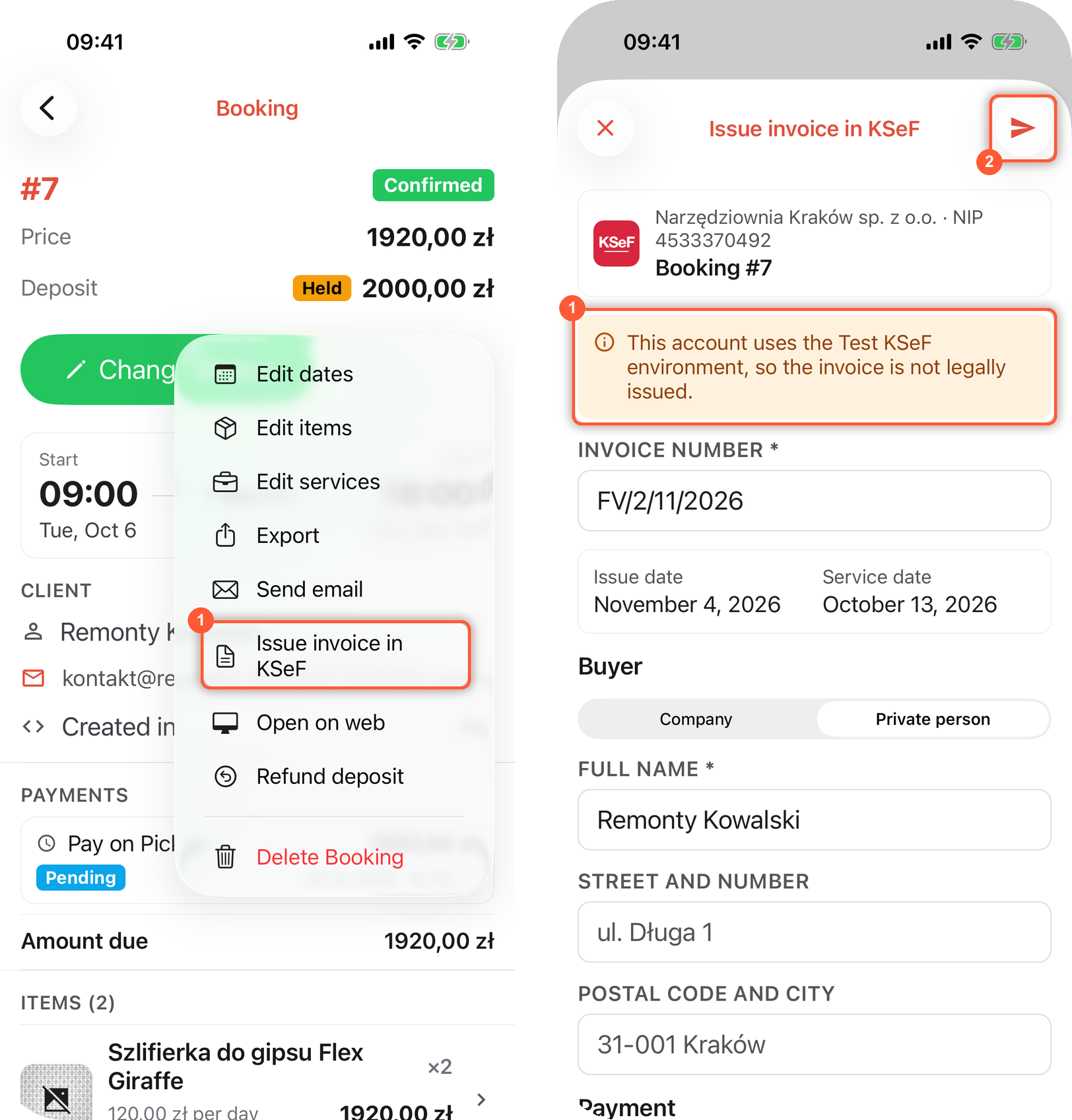
Issue from the booking's Actions, check the invoice, and send it from the header.
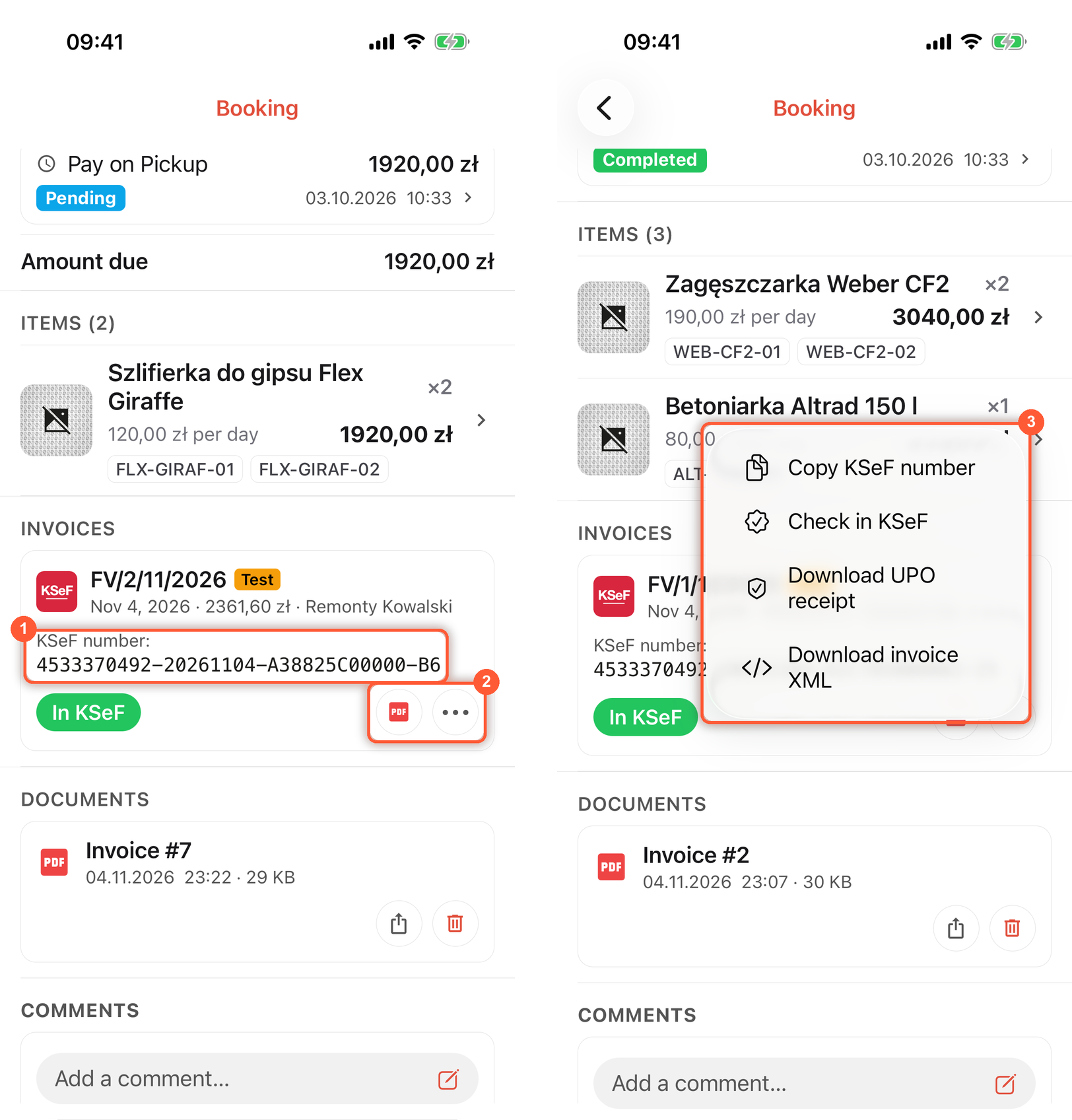
1 The KSeF number. 2 Share the PDF or open more actions. 3 KSeF's files and the verification page.
Managing connected accounts
Reopening the KSeF dialog shows the connected account with its NIP and, outside Production, its environment. The token is never shown again.
| Action | What it does |
|---|---|
| Edit details | Change the seller details, the environment or the VAT status. Changing the NIP or the environment checks the stored token against KSeF again. |
| Replace | Paste a new token, for example after it expired or was revoked in the KSeF app. |
| Add another account | Connect a second seller, for example another company you invoice as. When there are several, the issue dialog asks which one to issue from, and the Default one is preselected. |
| Disconnect | Removes the account. Invoices still processing keep updating until KSeF answers; the dialog says how many there are. |
If KSeF refuses an account's token while issuing, the account is marked Needs attention until you replace the token.
Limits
| Question | Answer |
|---|---|
| Can I edit an invoice after it is issued? | No. An invoice in KSeF cannot be changed; a correction invoice is needed, which Requiply does not issue yet. |
| What if I delete the booking? | The invoice stays in KSeF and in your KSeF app. |
| Are invoices for private persons sent to KSeF? | Yes, when you issue them here. KSeF also accepts invoices for consumers. |
How this connects to the rest of Requiply
| Feature | Relationship |
|---|---|
| Booking documents | The PDF invoice and your export templates are saved there. A KSeF invoice lives in the separate Invoices section. |
| Money on a booking | Payments decide whether the invoice is suggested as paid; the booking's VAT becomes the invoice's VAT. |
| Document signing | Signing sends a saved PDF for a signature. KSeF issues the invoice itself. They work independently. |
Document signing
Connect Vchasno so a rental agreement generated in Requiply can be sent for a qualified electronic signature without leaving the app.
Data migration
Move your Booqable account into Requiply with an API key: settings (working hours, buffers, default deposit, company contacts, pricing tiers), customers, products with stock and photos, and bookings with payments. Run it again without duplicates, or request a custom migration from another system.