

Fakturownia
The Fakturownia integration issues a VAT invoice in Fakturownia for a Requiply booking. Requiply sends the booking's items, services, prices, VAT and buyer; Fakturownia numbers the invoice with your series, prints the PDF with your template and, if your account has KSeF connected, sends it on to KSeF. The integration is in Beta (In verification with Fakturownia).
Use it if you already invoice in Fakturownia. If you have no invoicing app and want to send invoices straight to KSeF, use KSeF instead. You can connect both: the booking's actions menu then offers one entry per provider.
Before you start
| What | Where |
|---|---|
| API token | In Fakturownia, Ustawienia → API, the Kod autoryzacyjny API. Click Dodaj nowy Token if the list is empty. |
| Company details in Fakturownia | Ustawienia → Dane firmy: name, NIP and address. Fakturownia prints them as the seller and refuses invoices without them. |
| VAT on bookings | VAT payers turn VAT on under Settings → Pricing → VAT before creating the bookings they want to invoice. Bookings keep the VAT they were created with. |
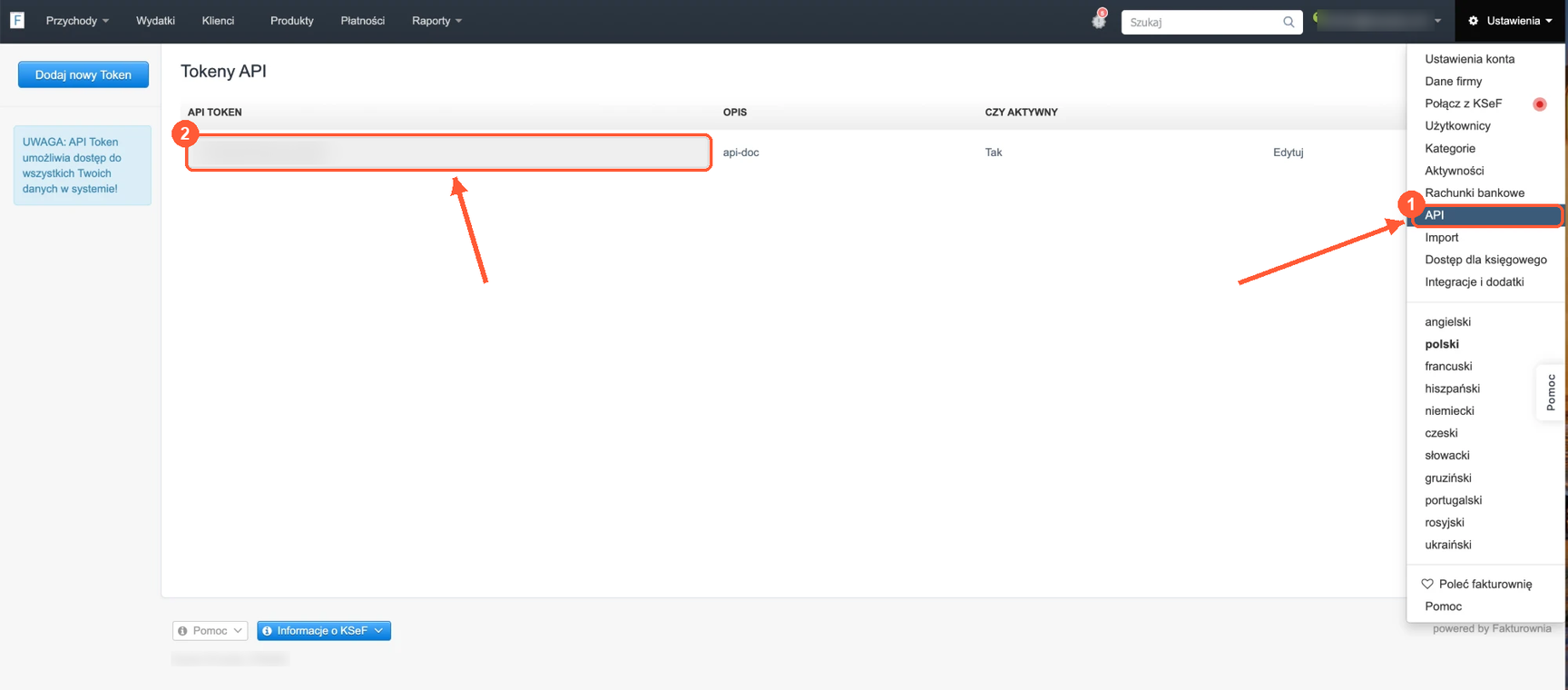
The API token in Fakturownia. Screenshots on this page are in Polish, because Fakturownia is used for Polish invoicing.
Connecting Fakturownia
Open Settings → Integrations → E-invoicing and click Setup on the Fakturownia card.
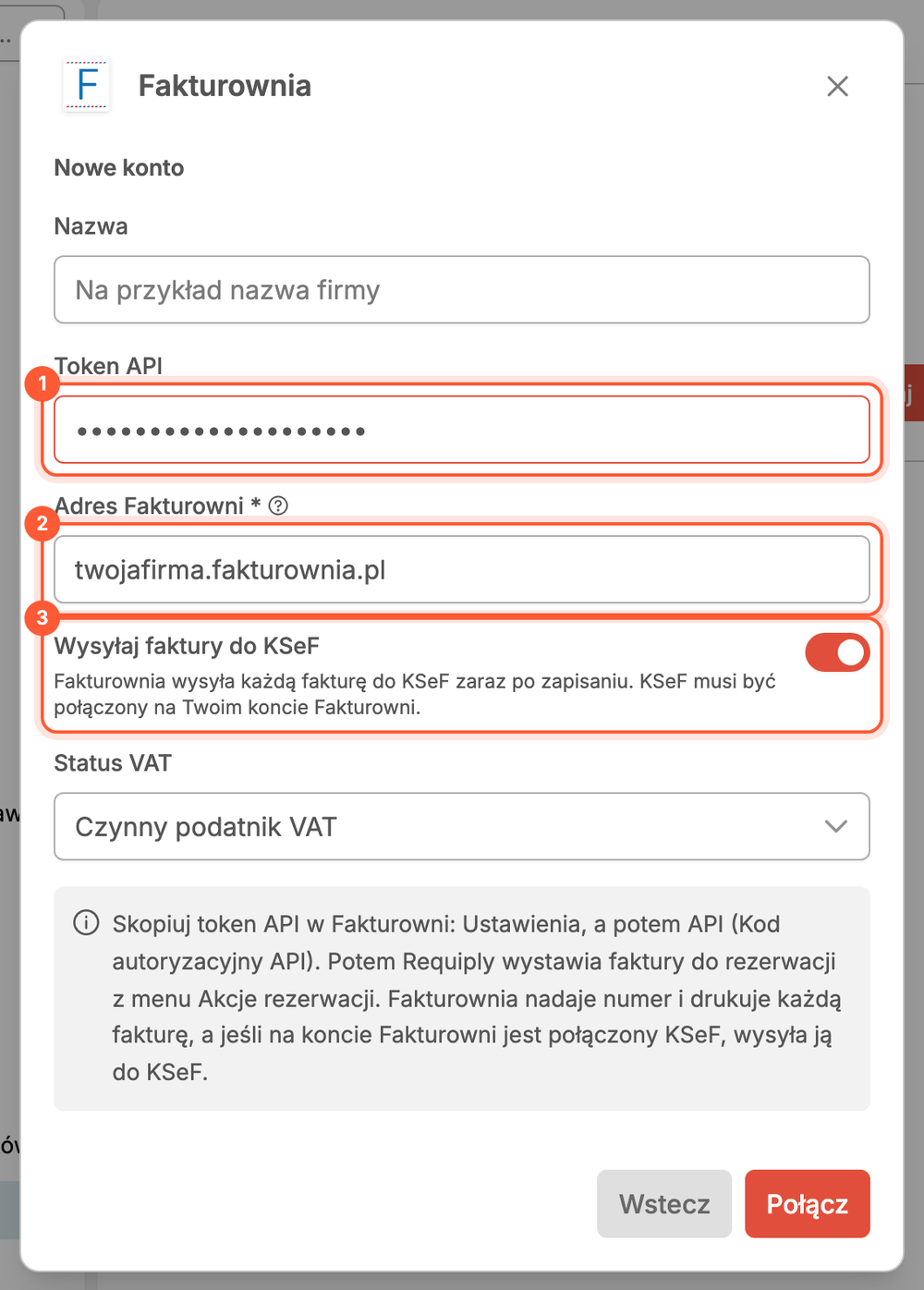
Requiply checks the token with Fakturownia before saving it.
| Field | What to enter |
|---|---|
| API token | The API authorization code from Fakturownia. |
| Fakturownia address | The address you open Fakturownia at, for example mojafirma.fakturownia.pl. |
| Send invoices to KSeF | On: Fakturownia sends each invoice to KSeF right after saving it. KSeF must be connected in your Fakturownia account. |
| VAT status | VAT payer, or VAT-exempt with the legal basis. |
Click Connect. A wrong token or address is refused straight away (Fakturownia refused the token for this address.). Right after connecting, Requiply offers to add the client fields invoices need, see Client details fill in themselves.
You can connect several Fakturownia accounts, one per company, and mark one as the default.
Issuing an invoice
Open the booking, expand Actions (the arrow next to Export) and choose Issue invoice in Fakturownia.
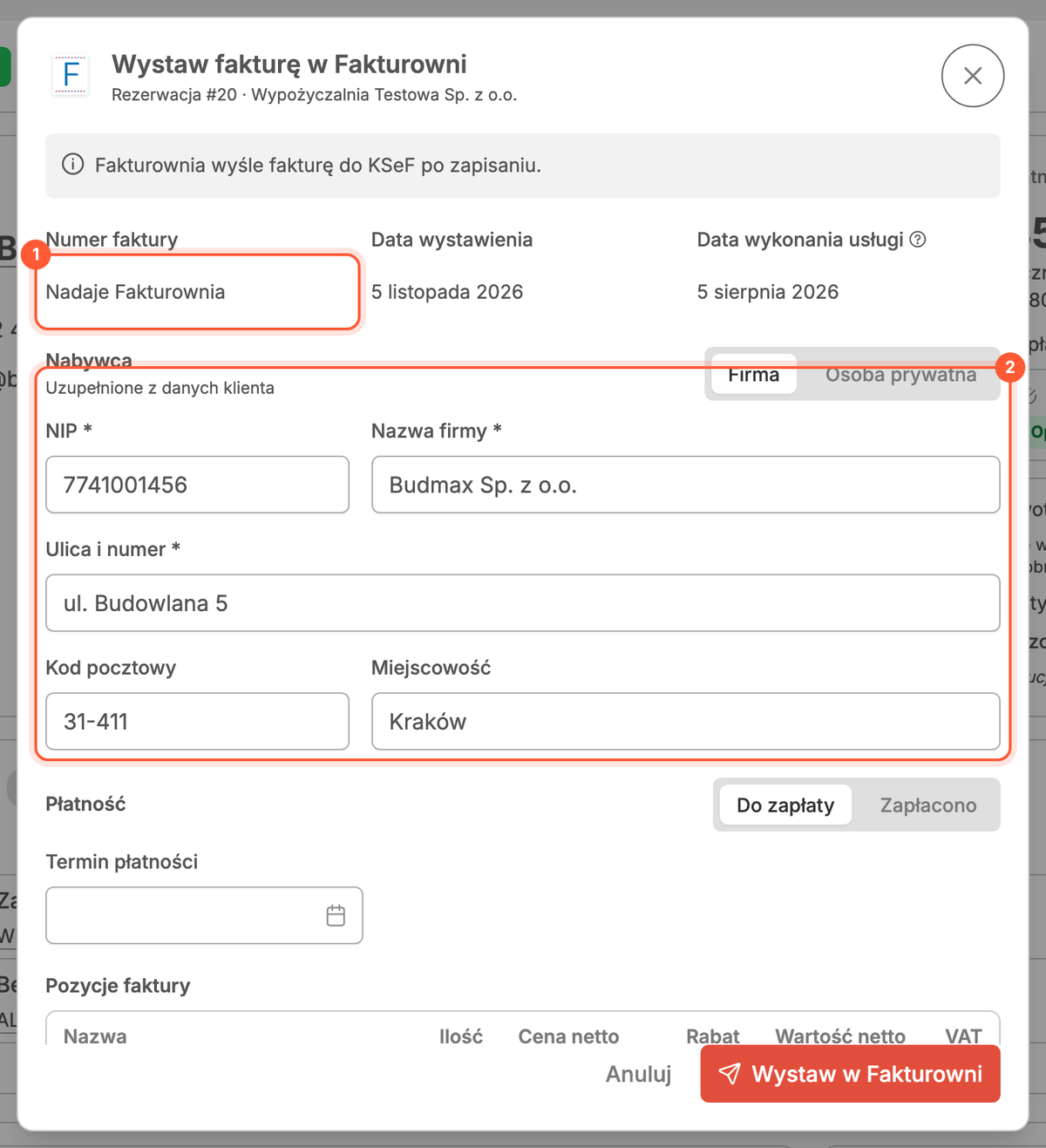
1 Fakturownia assigns the number. 2 The buyer comes from the client's details.
The dialog opens filled in:
- Invoice number: Assigned by Fakturownia, from your numbering.
- Buyer: NIP, company name, Street and number, Postal code and City from the client's fields, or from the client's last invoice (Filled in from the client's details). Choose Private person for a consumer.
- Payment: Paid when the booking is fully paid, otherwise To be paid with an optional due date. An empty due date uses your Fakturownia account's default.
- Invoice lines: every item and service of the booking with its price, discount and VAT rate.
Click Issue in Fakturownia. A few seconds later Invoice issued in Fakturownia appears with the number, and the invoice is listed in the booking's Invoices section.
What stops an invoice
The dialog checks the booking before anything is sent:
| Message | Fix |
|---|---|
| The booking has no VAT, but the Fakturownia account is set up for a VAT payer. | Turn VAT on before creating bookings, or change the account's VAT status. |
| The booking charges VAT, but the Fakturownia account is set up for a VAT-exempt seller. | Change the VAT status, or invoice a booking without VAT. |
| Fill in your company details in Fakturownia: Ustawienia, then Dane firmy. | Complete the seller details in Fakturownia. |
| A 7% VAT rate cannot be issued in Fakturownia. | Use a rate Fakturownia supports. |
| This booking already has an invoice in Fakturownia. | Open the existing invoice. |
| Fakturownia refused the invoice: … | Fakturownia's own reason is shown; fix it there or on the booking. |
The invoice on the booking
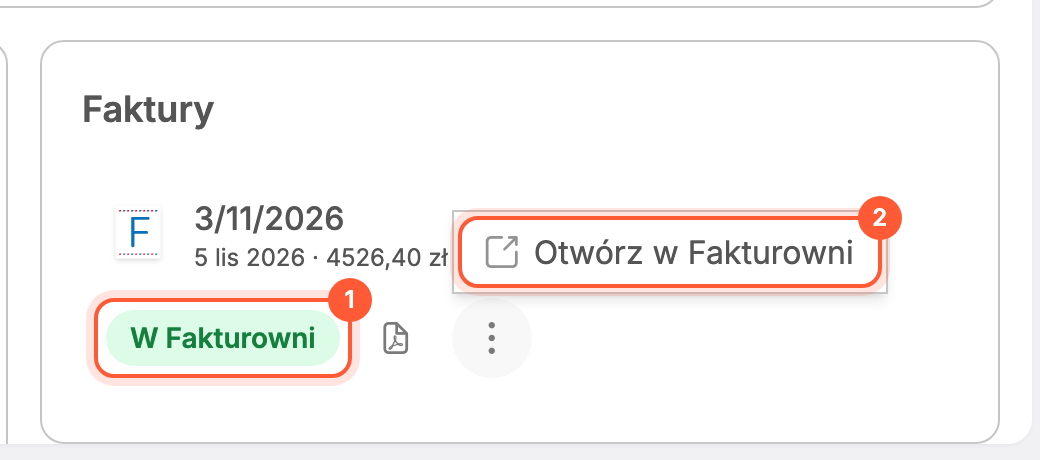
1 The status. 2 Open the invoice in Fakturownia.
- In Fakturownia means the invoice is saved there. The PDF button downloads it as Fakturownia prints it.
- Open in Fakturownia in the menu takes you to it, for example to email it to the client.
- With Send invoices to KSeF on, Requiply follows the KSeF status. Once KSeF accepts the invoice, it shows the KSeF number, and the menu adds Download UPO receipt and Download invoice XML. If KSeF rejects it, you see the reason and Issue again.
- While invoices wait for KSeF, the settings card says how many are pending.
Client details fill in themselves
Invoices need the buyer's NIP and address, so Requiply has client system fields for them: NIP (10 digits, check digit validated), Company name, Street and number, Postal code and City. After you connect Fakturownia or KSeF, the dialog Add client fields? turns them on at the Client level in one click (Add 5 fields, or Not now). You can also add them later under Field assignment.
After each accepted invoice, Requiply saves the NIP, company and address you entered into the client's empty fields, so the next invoice is filled in. It never overwrites details the client already has.
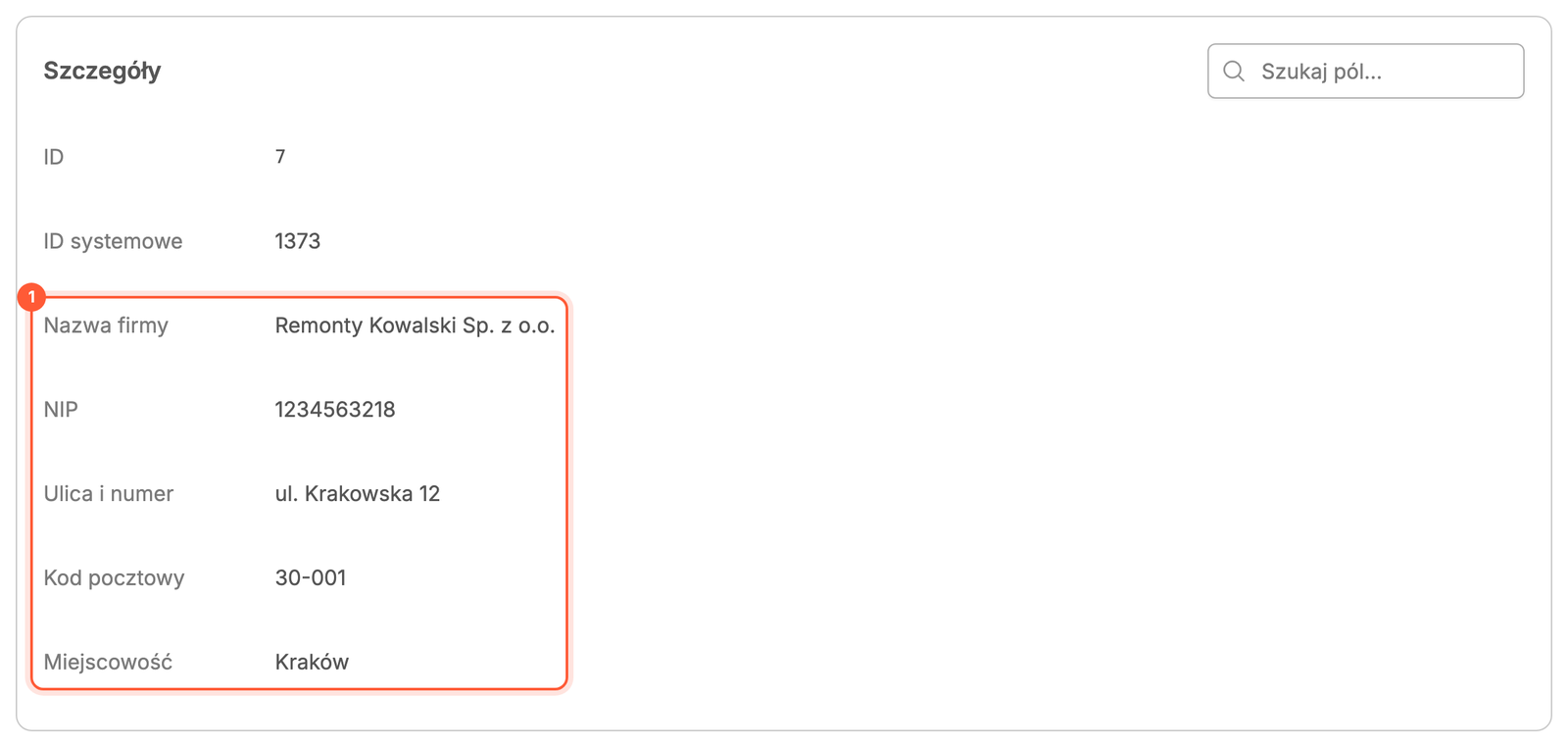
The client's details after the first accepted invoice.
Limits
- No correction invoices, pro formas or advance invoices yet. Issue those in Fakturownia.
- Payments are not read back from Fakturownia.
- Issue again after a KSeF rejection creates a new invoice in Fakturownia; delete the rejected one there.
Common scenarios
A company client rents for the first time
Issue the invoice, type the NIP and address into the buyer, and click Issue in Fakturownia. When the invoice is accepted, the client's fields are filled in, and the next invoice for them needs no typing.
Two companies, one Requiply
Connect each company's Fakturownia account and mark the one you use most as the default. Pick the account in the issue dialog.
Data migration
Move your Booqable account into Requiply with an API key: settings (working hours, buffers, default deposit, company contacts, pricing tiers), customers, products with stock and photos, and bookings with payments. Run it again without duplicates, or request a custom migration from another system.
Overview
Base prices per hour, day, or month, billing periods that decide how days are counted, pricing tiers for longer rentals, bundle and client discounts, services, and one-off booking adjustments. No seasonal rates or promo codes.