

Booking labels
Booking labels mark bookings with a color and an icon, so the team sees at a glance which bookings need a delivery, which client comes for a pickup, which job is on site, which order holds fragile gear, or which client wants an invoice made out to a company. A booking can carry several labels.
You manage labels under Settings → Bookings → Labels (/settings/reservations/labels).
Turning labels on
Labels are an organization feature. An admin switches on Booking labels under Organization → Features. The feature is available on every plan and is off by default.
While it is off, nothing about labels shows anywhere: no Labels page in settings, no label field on services and products, no labels on bookings, no Labels filter and no label actions in workflows. Turning it off later hides the labels but keeps them, so they come back when you turn it on again.
How a booking gets a label
A booking gets a label in four ways:
| Source | How it works | Can be removed on the booking |
|---|---|---|
| By hand | Someone ticks the label on the booking page or in the mobile app. | Yes, by unticking it. |
| From a workflow | A workflow with the action Add booking label puts it on. See Labels in workflows. | Only by a workflow with Remove booking label. |
| From a service | The booking has a service that carries the label. | No. It goes when the service is removed from the booking. |
| From a product | The booking has a product that carries the label. | No. It goes when the product is removed from the booking. |
A label shows once on a booking, even when it comes from several sources at the same time. Point at it to see where it came from, for example Added: by hand, from a service.
What you'll see
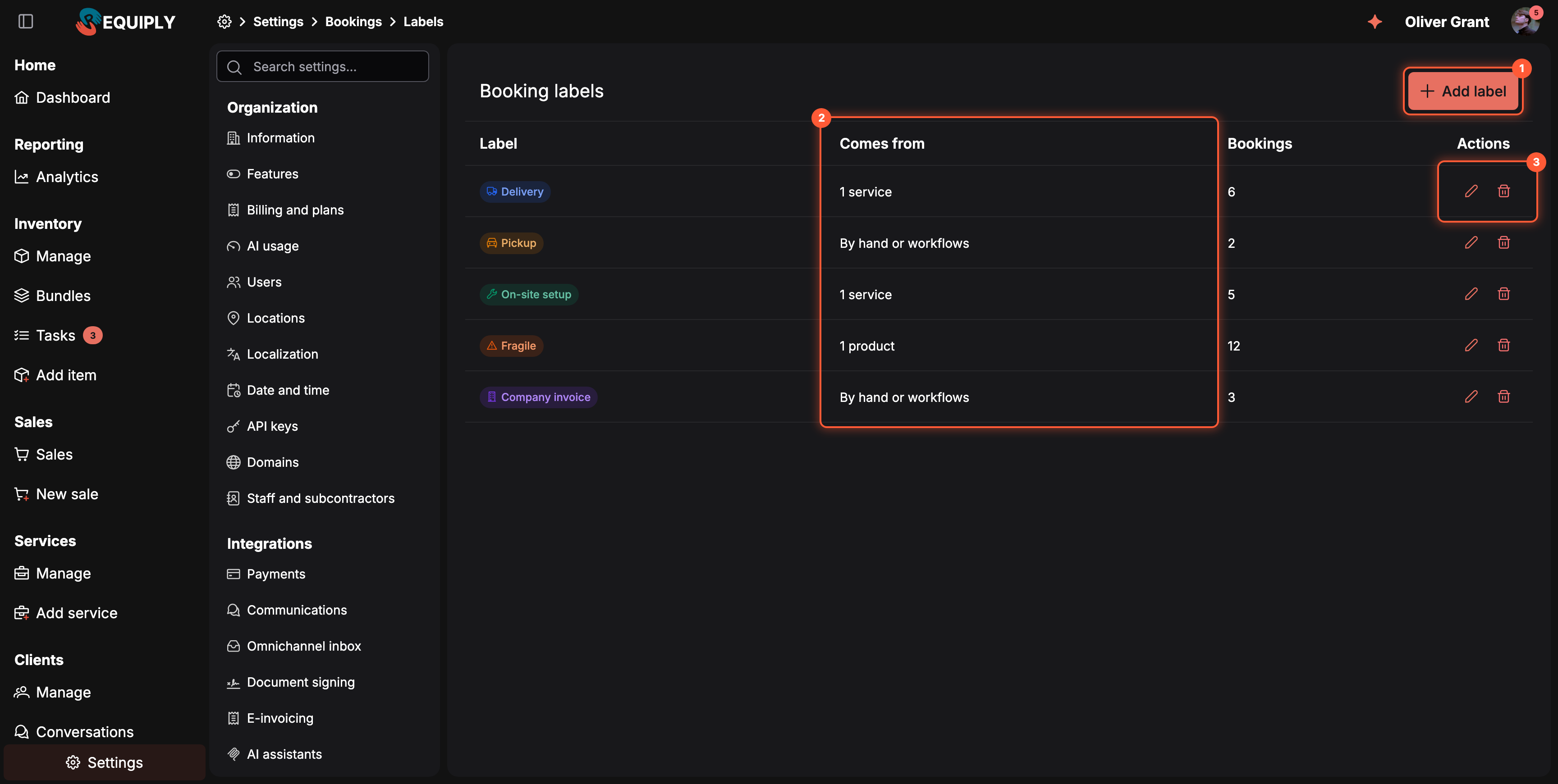
The Labels page. 1: Add label. 2: where each label comes from automatically. 3: edit and delete.
The page is a table with one row per label:
| Column | What it shows |
|---|---|
| Label | The label as it looks on bookings: its color, icon and name. |
| Comes from | How many services and products carry the label, for example 1 service or 2 products, or By hand or workflows when none do. |
| Bookings | How many bookings carry the label now. |
| Actions | A pencil to edit the label and a bin to delete it. |
An organization without labels sees No labels yet and the Add label button.
Adding a label
Click Add label. The New label dialog asks for:
| Field | Notes |
|---|---|
| Name | Required, up to 60 characters. Two labels cannot share a name, whatever the upper or lower case: A label with this name already exists. |
| Color | One of ten preset colors, or a color of your own from the picker at the end of the row. |
| Icon | One of 20 icons: tag, car, truck, box, send, building, person, people, star, bolt, wrench, flag, warning, clock, card, file, camera, map pin, phone and check. |
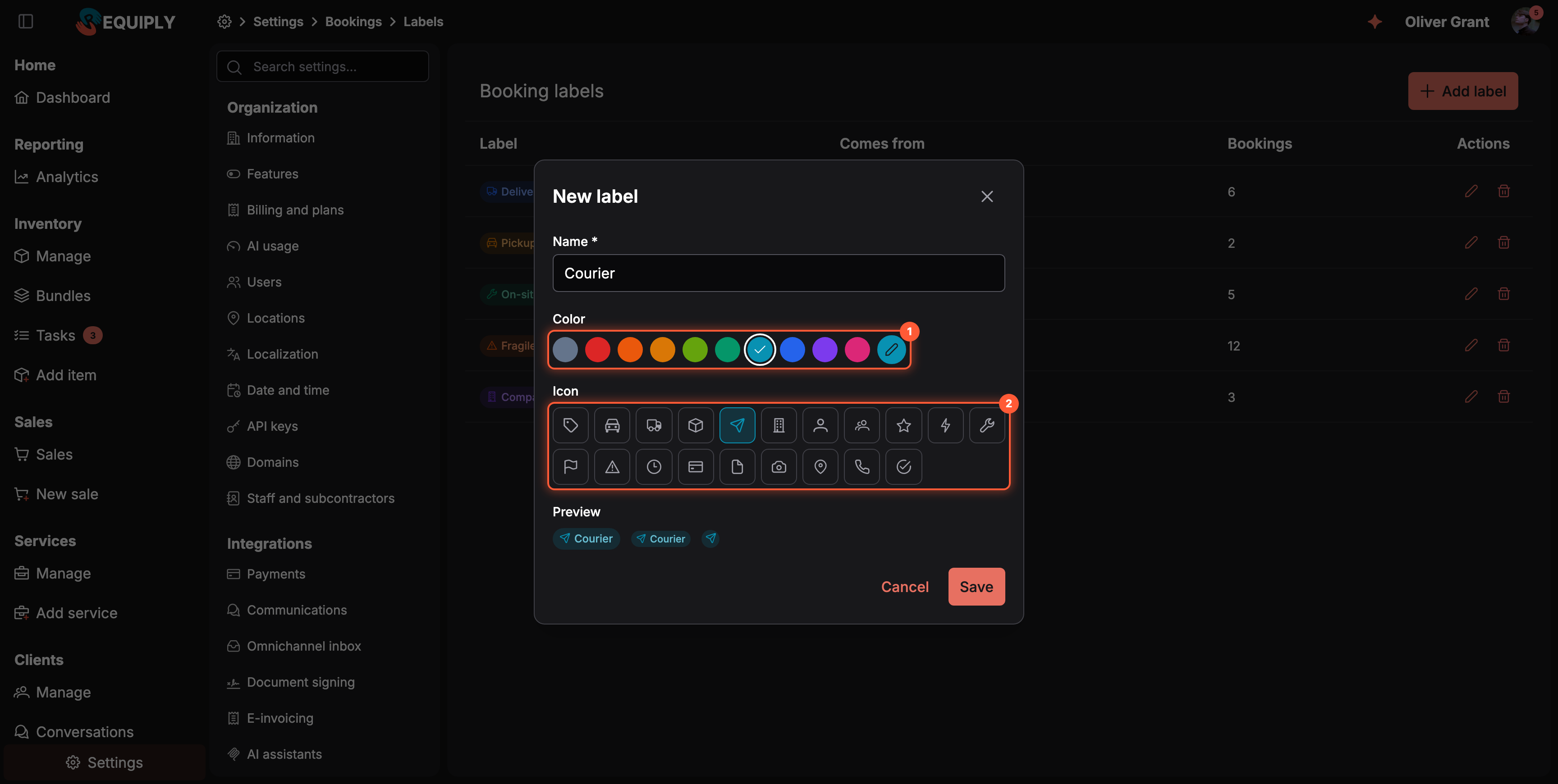
A new label. 1: ten preset colors and a custom one. 2: the icon. Preview shows the label as it will look on bookings.
Preview shows the label at the sizes it takes across the app, including the icon alone, as the calendar shows it. Save creates the label.
To change a label, click its pencil. The Edit label dialog has the same fields. A new name, color or icon shows on every booking that carries the label straight away.
Deleting a label
Click the bin on the label's row. The Delete label dialog says what the label will be removed from, for example 2 services, 1 product and 12 bookings. Deleting cannot be undone: the label disappears from those services, products and bookings, and workflows that add or remove it stop doing anything.
Labels from services and products
A service or a product can carry one label. Every booking with that service or product gets the label automatically, and loses it when the service or product is removed from the booking. Choose the label in the Label field of:
- the service form, under Properties,
- the product form, under the prices.
The info icon next to the field says it: Every booking with this service gets this label. The list of labels ends with + New label, which opens the Labels page with the New label dialog ready.
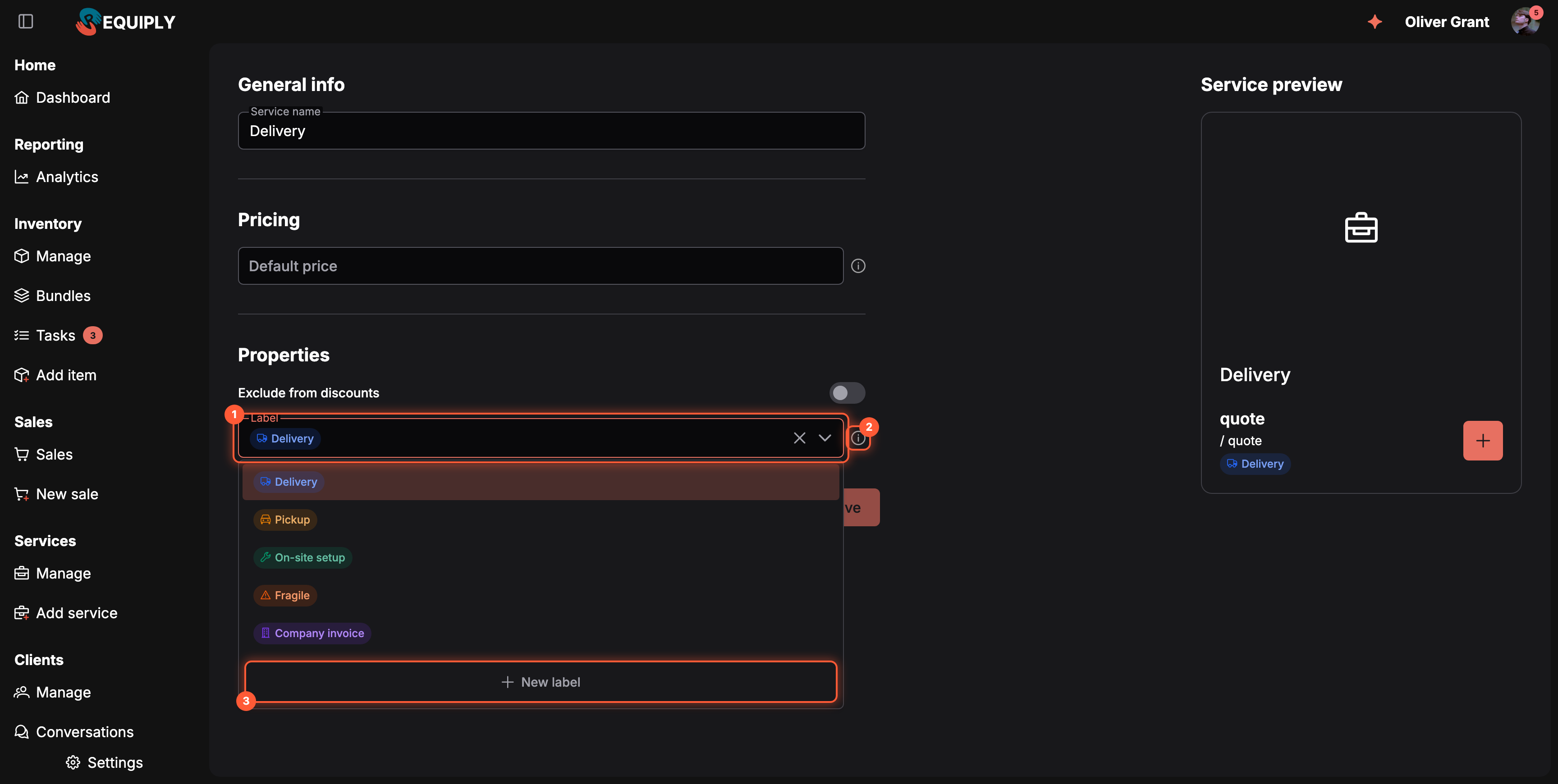
The Label field of a service. 1: the label. 2: the info icon. 3: + New label.
Setting or changing the label of a service or product also updates the bookings that already have it, and clearing the field removes the label from them. Such labels are locked on the booking: to take one off, remove the service or product from the booking, or clear the field.
Editing the labels of a booking
On the booking page, the labels sit in the header, right after the booking number. The pencil next to them, or Label when the booking has none yet, opens a list of all your labels with checkboxes. Tick a label to add it and untick it to remove it: each click saves.
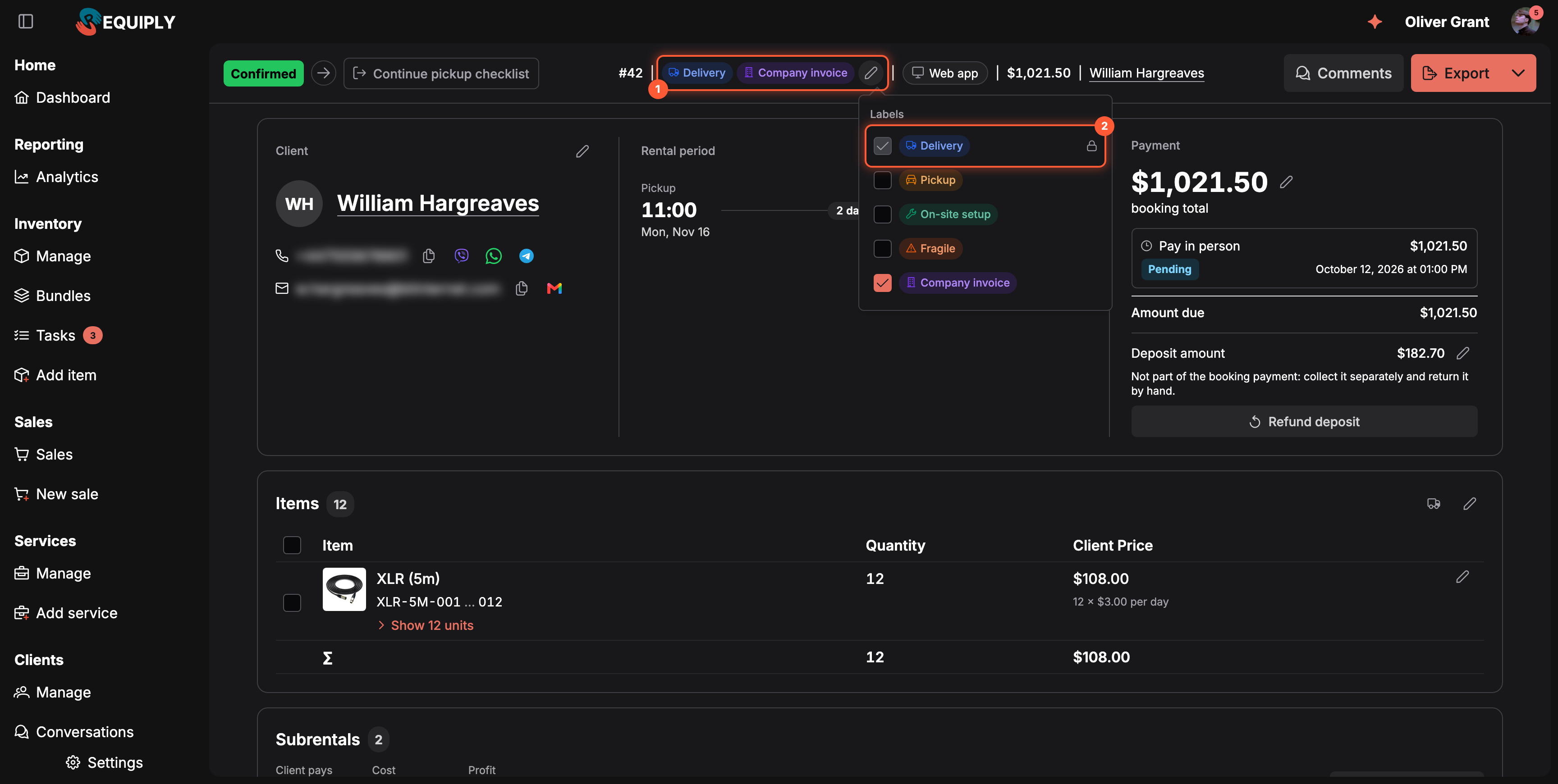
The labels of booking #42. 1: the labels and the pencil in the header. 2: Delivery was added by a workflow, so it is locked.
Labels that come from a service, a product or a workflow are ticked, greyed out and carry a lock. Point at the lock to see why, for example Added: from a service. Labels added by hand can be ticked and unticked freely.
In the mobile app, Labels in the booking's Actions menu does the same.
Where labels show
| Where | What you see |
|---|---|
| Dashboard | Labels after the client's name in the Pickups, Returns and Overdue rows, and in the booking preview card. |
| Manage bookings | A Labels column right after Status, with up to three labels and +N for the rest, and a Labels filter. |
| Calendar | Label icons on the booking bars and cards, names in Day view when a booking is tall enough, and a Labels filter. |
| Booking page | The labels in the header, with the pencil to edit them. |
| Mobile app | Label pills on the booking cards and the booking screen, and Labels in the Actions menu. |
| Services | A Label column on the services list once a service carries a label. |
The Labels column and the filters appear once the organization has at least one label.
Labels in workflows
Workflows have two label actions:
- Add booking label puts the chosen label on the booking that triggered the workflow. It stays until someone removes it or another workflow does.
- Remove booking label takes the chosen label off, but only if it was added by hand or by a workflow. Labels that come from services and products stay.
Common scenarios
Seeing deliveries at a glance
Create a Delivery label with a truck icon and pick it in the Label field of your delivery service. Every booking with delivery now carries the label on the dashboard, in the table and on the calendar, and the Labels filter lists all of them for the driver's route.
Marking fragile gear
Create a Fragile label and set it on the products that need careful packing, such as cameras or lenses. Whoever prepares the order sees the label without opening the booking.
Invoices to a company
Create a Company invoice label and tick it by hand on bookings whose client wants an invoice made out to a company. Before invoicing, filter the bookings list by the label.
Marking paid bookings automatically
Create a workflow on Payment status reached → Completed with Add booking label and a Paid label, and a second one on the Cancelled status with Remove booking label.
Tips and cautions
Booking statuses
Rename, recolor, add and delete booking statuses, choose the allowed transitions, and decide which statuses hold stock, open a checklist, count as active, completed, or cancelled, and show a count in the menu. Every status is editable.
Booking creation
Choose the date picker layout, a default booking duration that fills in the return, whether new bookings start from the current time, whether the booking form starts from items, from dates or in any order, the compact one-page web view, the statuses and the payment method new bookings start with, and whether units can be scanned in at creation.